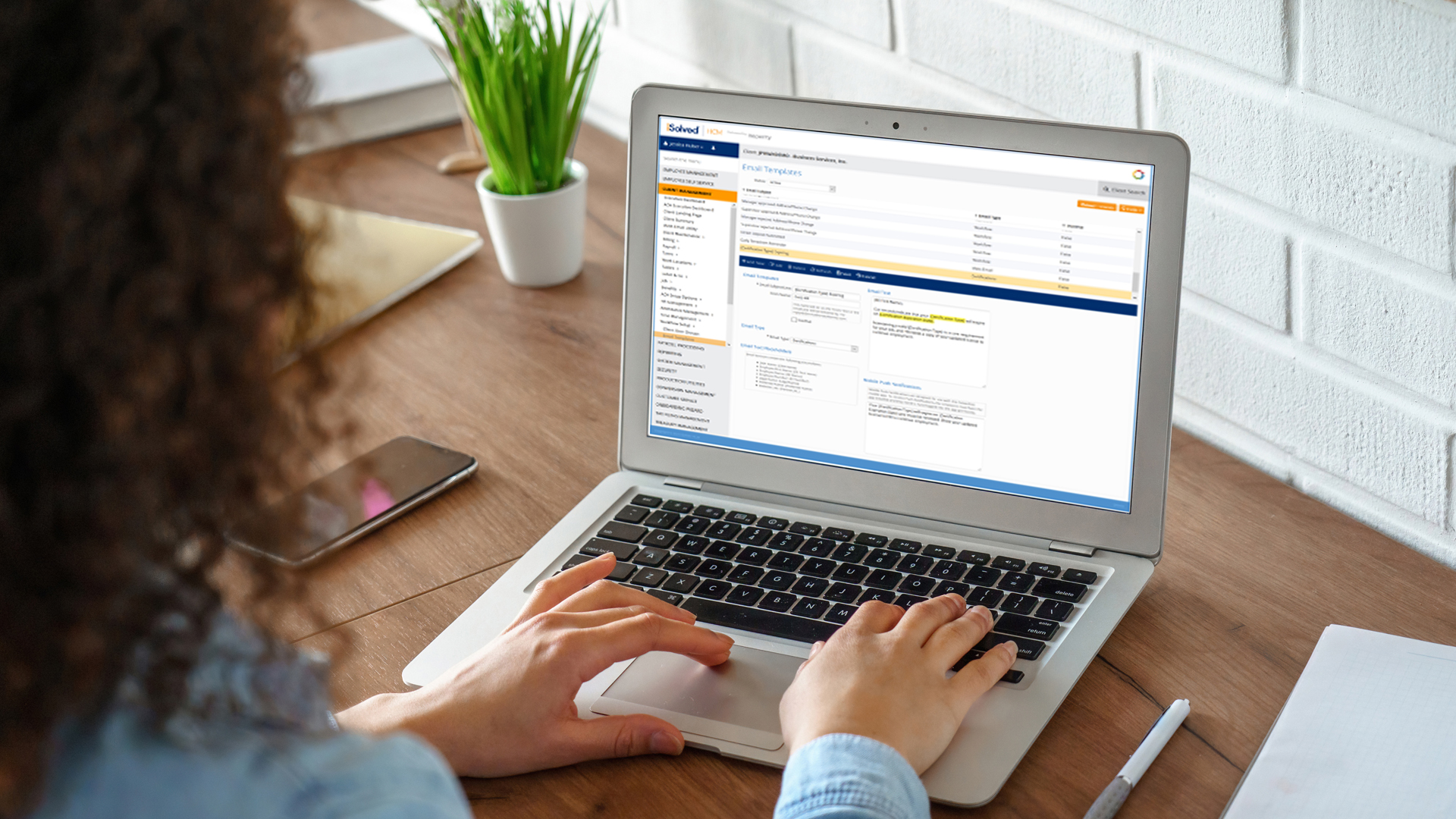
iSolved’s product release v6.10 deployed on Nov. 13, 2020 and included enhancements to HR, Payroll and Time. These features include:
HR & Payroll
- Added new Offboarding Wizard for employee terminations
- New dashboard for hires, terminations and I-9 completion management
- Added ability to mask social security number on employee W-2s
- 1099-NEC forms are available
Time
- New carryover options that allow time taken to be applied to the correct plan year
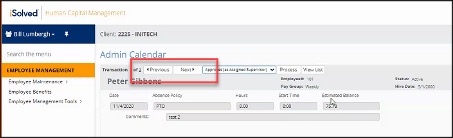
- Added ‘Previous’ and ‘Next’ buttons to improve the approval process for Time Off Requests
- Collapsible filters added to My Dashboard
Learn more about each of these enhancements and added features below.
HR & Payroll
New Offboarding Wizard added
The Offboarding Wizard will allow customers to configure an offboarding process for terminating employees that allows assigned users to complete their steps in the termination process.
With the new offboarding functionality, you can streamline the process:
Enjoy a sneak peek of the new wizard below. You can see that the process will walk you and other team members step-by-step through the tasks required to complete an employee’s termination.
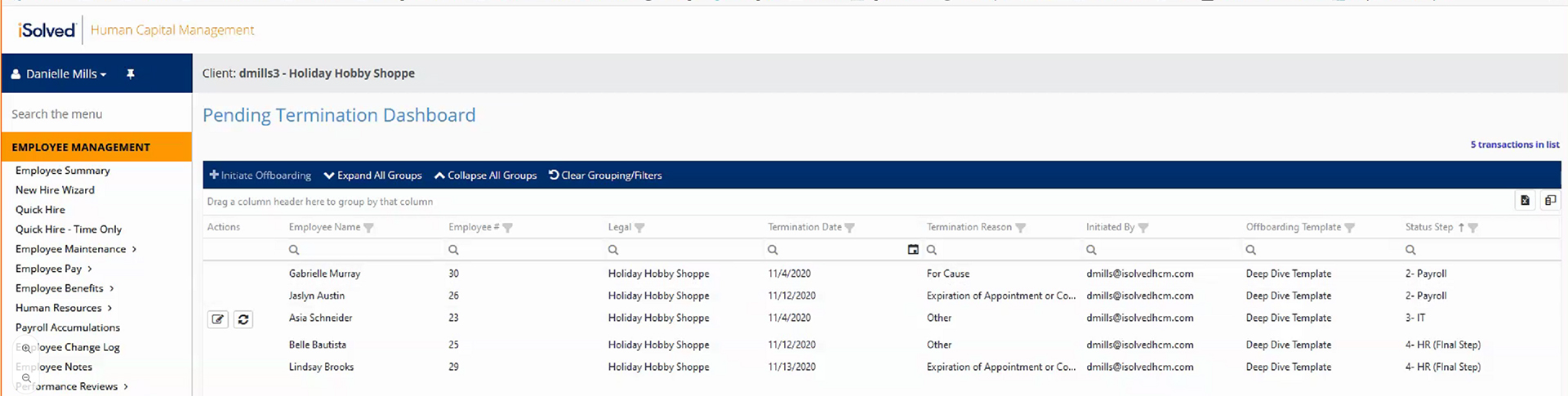
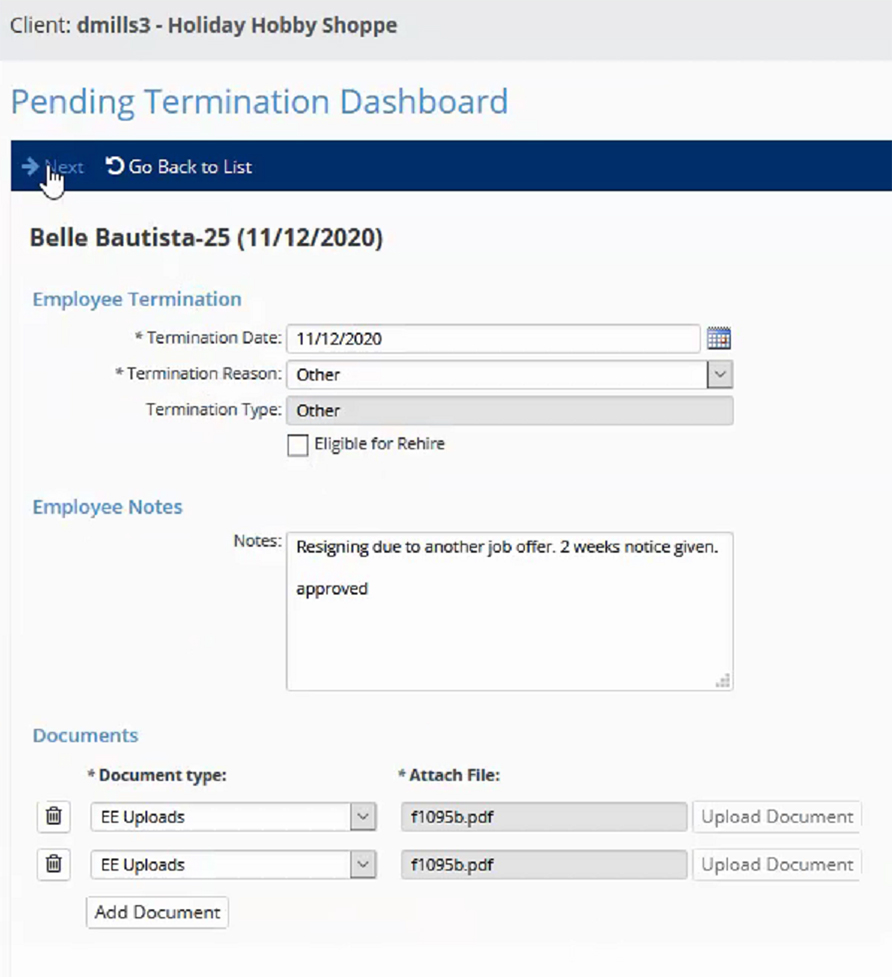
With this release, the option to payout unused time off balances can be automated through the Offboarding Wizard. Your Leave Accruals will need to be updated by your time or payroll specialist in order to allow this option to be available during offboarding.
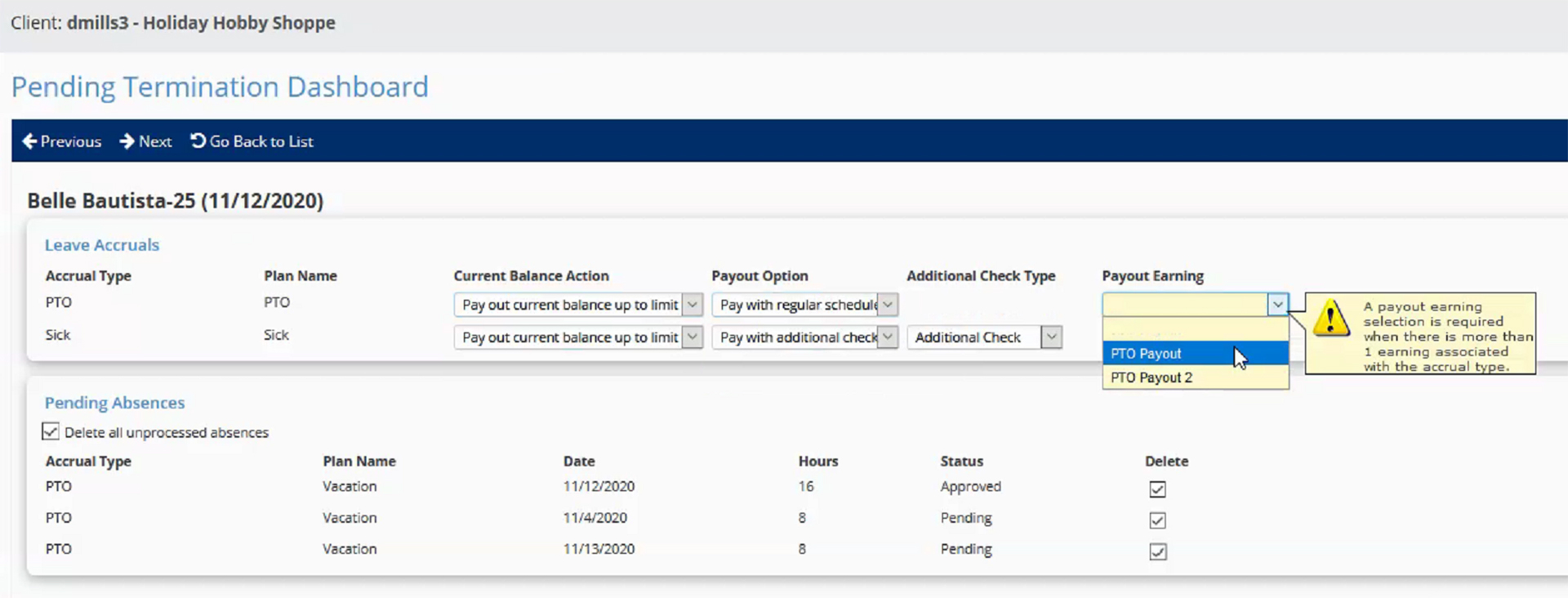
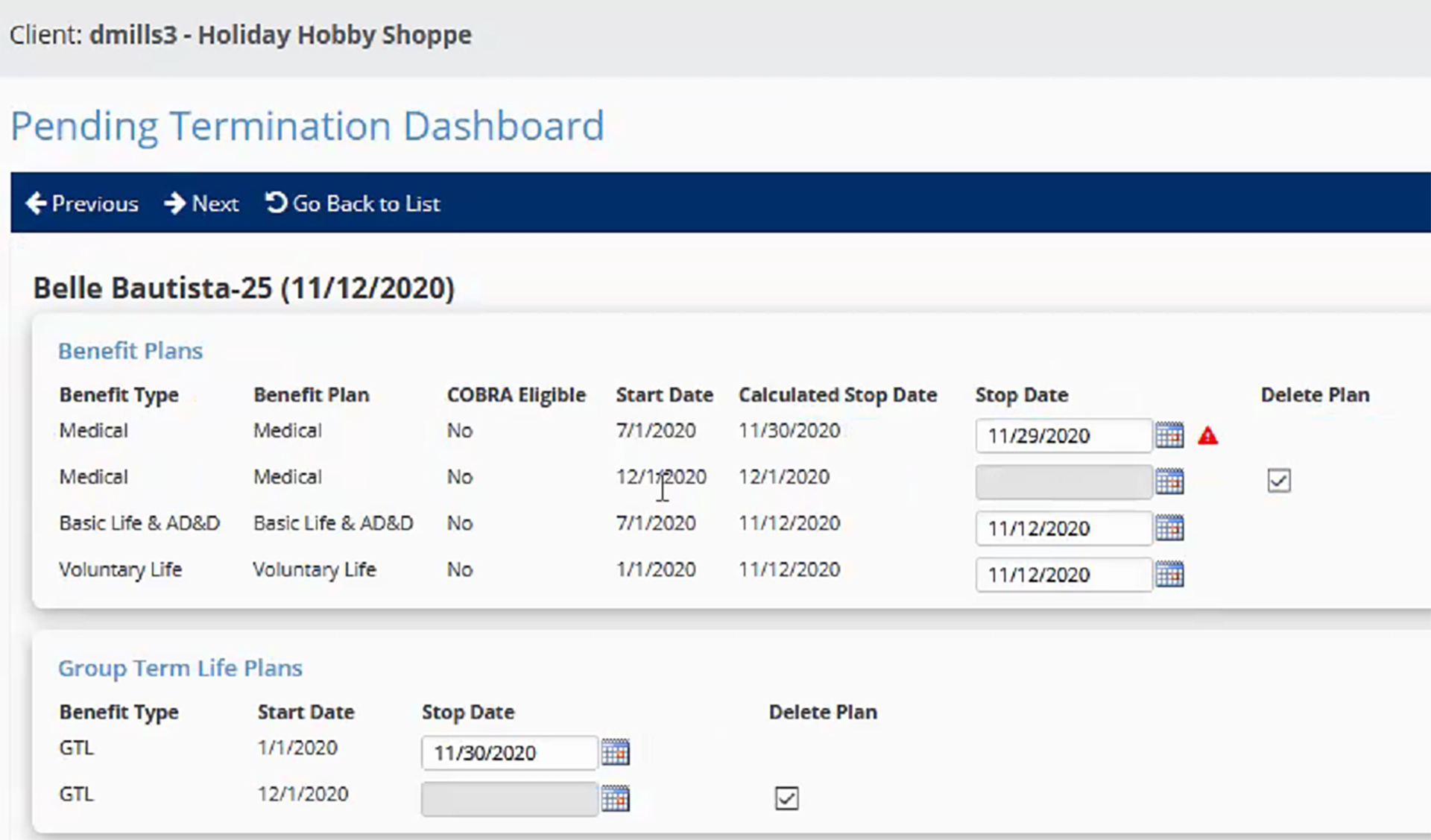
Once the Offboarding Wizard is completed, the details are captured in the Offboarding Audit Report and automatically saved to the Confidential – Other tab of the Employee Documents.
An article will be released in iSolved University that will provide more details regarding the Offboarding Wizarding. If you would like Offboarding configured in iSolved, please reach out to your assigned payroll specialist.
New dashboards added for hires, terminations, and I-9 management
iSolved has added new dashboards to provide valuable insight for processes around hiring employees, terminating employees, and managing the I-9 verification process.
Employee Dashboard
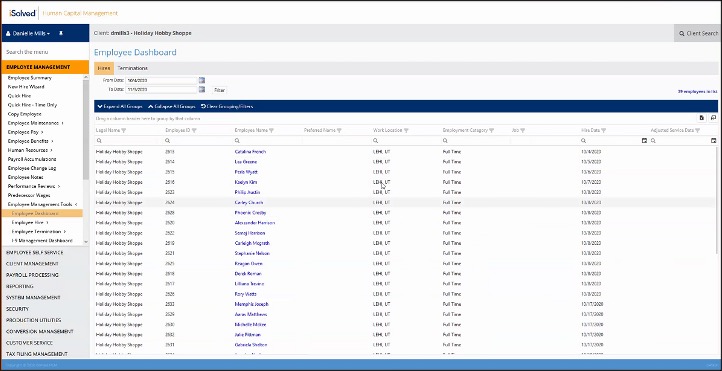
The new employee dashboard provides a snapshot in time of employee hires and terminations with customizable columns and filters. The Hires tab displays employees whose hire or rehire dates fall within the range you specify. Employees with multiple hire dates within the date range will display multiple employment periods. Columns can be customized, sorted, filtered, and grouped to display information that works best for your user preferences. Users can click the employee’s name to quickly access their General screen right from the dashboard.
The Terminations tab displays employees whose termination dates fall within the range you specify. This dashboard will display multiple employment periods if employees have multiple termination dates within the date range. The employee name provides a shortcut to the employee’s General screen to easily access additional information or make changes. The columns on the dashboard can also be customized, sorted, filtered, and grouped to display the information that you need to review.
Data from these dashboards can be exported to an Excel workbook.
I-9 Management Dashboard
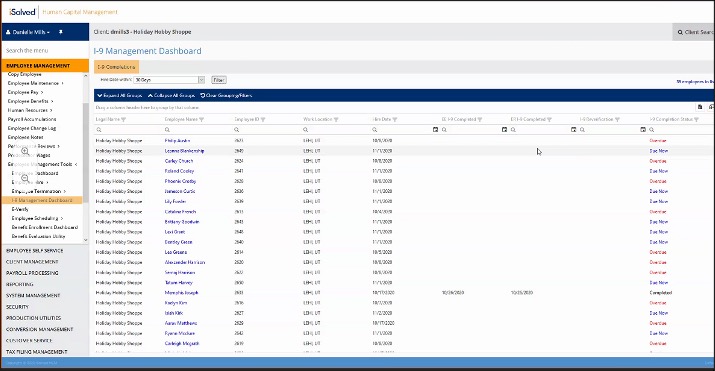
The new I-9 Management Dashboard is a tool to help customers stay in compliance with I-9 rules and regulations. To ensure timeliness, this dashboard displays the current verification status for employees with hire dates within 3 days, 7 days, or 30 days. From there, you can quickly access the employee I-9 details by clicking on their name.
The I-9 dashboard includes columns to display the completion dates for the employee and employer portions of the form, including reverifications for rehired employees. You can verify the timeliness of the I-9 process by viewing employees using these statuses:
- Due Now: If the employee and/or employer has not completed their portion of the I-9, and it is within the 3 business days from the hire date.
- Overdue: If the employee and/or employer has not completed their portion of the I-9, and it is beyond the 3 business days from the hire date.
- Completed Timely: If the employee and/or employer has completed their portion of the I-9, and the completion date for both was within the 3 business days from the hire date.
- Completed: If the employee and/or employer has completed their portion of the I-9, but the completion date for either was after the 3 business days from the hire date.
![]() Added ability to mask SSN on employee W-2s
Added ability to mask SSN on employee W-2s
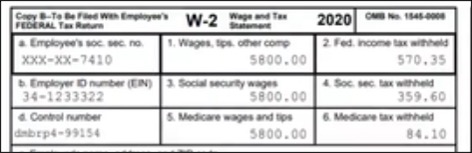
Prior to 2020, the IRS did not allow for social security numbers to be masked on employee W-2s. This is now allowed on the employee copy of the 2020 W-2. The social security number will be displayed with a mask except for the last 4 digits (see example). The full social security number will still display on the employer copy of the 2020 W-2 form.
If you would like this configured for your company, please reach out to your assigned payroll specialist.
1099-NEC forms are available
1099-NEC forms should be used to report nonemployee compensation. These forms are now ready for 2020 year-end in iSolved.
Time
New carryover options available for accrual plans
Two new carryover options for iSolved Time users have been added to correct issues when employees take time in a pay period that spans two calendar years. The new options ensure time off is applied in the correct plan year. When employees use PTO in the last pay period of the calendar year, the new calendar year option will deduct time used through December 31st from the employee’s balance before the carryover is calculated. Time taken after December 31st is applied to the next plan year. The new anniversary year option splits the taken time into the appropriate plan year in the same way. The Time Off Balances screen has been updated to reflect these changes as well.
To explain how this corrects time off balance calculations that have not worked as expected, let’s assume we have these plan details for a calendar year plan:
- PTO plan year runs from January 1 – December 31
- Balances are calculated as: current balance – taken + carryover + accrued
(This scenario also corrects issues for balances that are calculated as: current balance – taken + accrued + carryover) - The last pay period of the calendar year runs from 12/28/2020 – 01/10/2021
- The accrual plan does not allow unused time to be carried over into the next plan year
- The example employee has a current balance of 20.00 hours going into the 12/28/2020 – 01/10/2021 pay period
- The employee has taken the following PTO:
- 8 hours on 12/31/2020
- 8 hours on 01/08/2021
- The example employee will accrue a new lump sum of 80.00 hours on January 1 based on their seniority tier
To calculate PTO correctly, the 8 hours taken on 12/31/2020 should be applied to the 2020 plan year and the 8 hours taken on 01/08/2021 should be applied to the 2021 plan year.
Using the existing Calendar Year carryover option, the system would use this calculation:
20.00 hours current balance – 16.00 hours taken in the pay period – 4.00 hours carryover lost + 80.00 hours accrued = 80.00 hours balance at the end of the 01/10/2021 pay period.
This is incorrect, since all the taken time is applied in the 2020 plan year.
Using the new Calendar Year carryover option, the system will use this corrected calculation:
20.00 hours current balance – 8.00 hours taken through 12/31 – 12.00 hours carryover lost + 80.00 hours accrued on 01/10/2021 – 8.00 hours taken on 01/08/2021 = 72.00 hours balance at the end of the 01/10/2021 pay period.
This is the correct balance, since time is applied in the appropriate plan year.
If you have any questions about these new options or how your existing configuration will change, please reach out to watime@insperity.com.
Added ‘Previous’ and ‘Next’ buttons to the Time Off Request approvals on Admin Calendar
Previously, users would be redirected back to the calendar view of the Admin Calendar each time they approved a Time Off Request. To streamline the process, iSolved has added ‘Previous’ and ‘Next’ buttons to make it easier for supervisors or managers to scroll through the time off requests and complete the approvals.
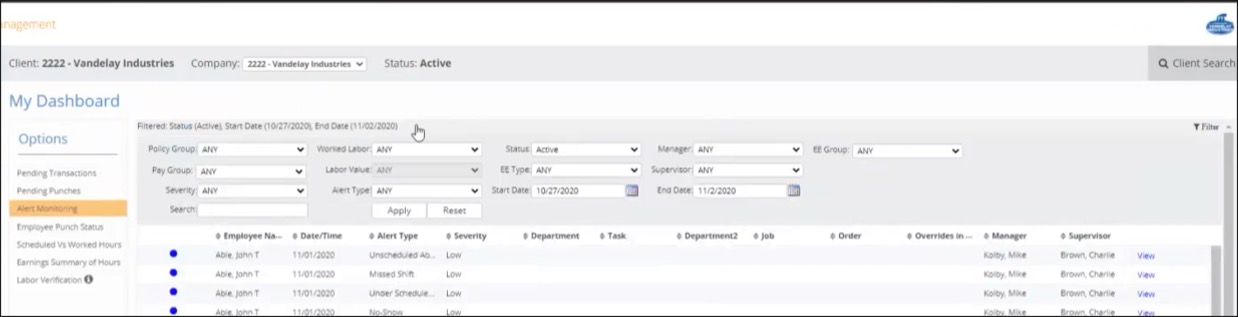
Added collapsible filters to My Dashboard
Collapsible filters were added to the My Dashboard screen to give users extra room for the results of the search. When collapsed, the filter line will display a summary of what’s being filtered. Users can click the summary in order to expand the filters again to make a new selection. Filters will automatically collapse when results are generated.