
The onboarding feature in iSolved provides employees with a self-service solution to complete new hire paperwork, eliminating the need to submit paper forms. Onboarding is included with your Insperity offering, but needs to be configured by your payroll specialist before you can use it.
How it works
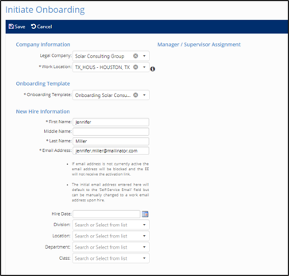
To register a new hire for onboarding in iSolved, navigate to Employee Management > Employee Management Tools > Employee Hire > Initiate Onboarding.
On this screen, complete the basic information for the new employee. Required fields are marked with an asterisk. When entering this information, you must use an active email address for the employee. If it is not active, the email address will be blocked in iSolved until your payroll specialist submits a request to remove it from the blocked list. If you use a company email address, check with your IT department to ensure the account is active before assigning it to an employee in iSolved.
The new hire will receive an email with instructions for accessing iSolved to complete the Onboarding Wizard.
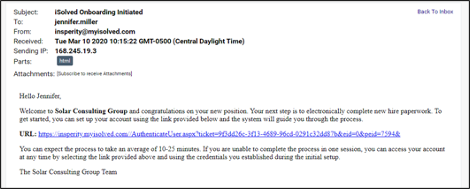
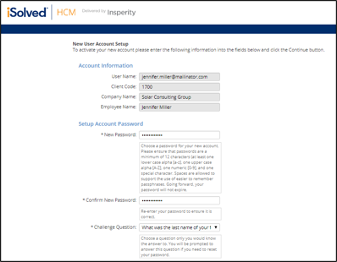
The employee clicks the link in the email to complete their iSolved account registration.
Once the employee has completed their iSolved account registration, the Onboarding Wizard walks them step-by-step through collecting information needed for new employees. Work with your payroll specialist to customize which fields are included by defining Onboarding Templates. You can require completion of certain fields or require access to certain sections. Information you can include:
- Welcome
Customize the message employees see when they begin the Onboarding Wizard. Employees can download and electronically acknowledge important company documents, complete fillable PDF, or click web links from the welcome page. - Employee data
Employees can enter their full name to ensure it matches their social security card, driver’s license, and enter their resident address. - Other employee data
Employees enter their social security number or tax ID, birth date and phone numbers. - Disability self-identification
Employees can electronically complete Form CC-305, Voluntary Self-Identification of Disability, to comply with affirmative action plans and OFCCP requirements. - EEO self-identification
Employees can electronically complete the EEO-1, Voluntary Self-Identification form, to comply with EEO-1 reporting and affirmative action plans. - VETS self-identification
Employees can electronically self-report their veteran status information to comply with VETS-4212 reporting and VEVRAA affirmative action plans. - I-9 information
Employees can electronically sign their portion of the federal I-9 form. - Tax information
The Tax Wizard guides the employee through completing and electronically signing their federal W-4 and state and local tax forms based on their resident address and work location. - Employee contacts
Employees can enter their emergency contacts, dependents and beneficiaries. - Prior employment
Employees can enter their work history. - Certifications
Employees can enter their certification details, including effective and expiration dates, so you can be notified when their important work credentials will expire. - Education
Employees can provide their education history, including degree and certificate programs they have completed. - Skills
Employees can provide details about their unique skills, like language proficiencies and technical skillsets. - Direct deposit
Employees can enter their banking information for paycheck direct deposits. Routing numbers are verified for accuracy as they are entered. - Miscellaneous fields
Collect company-specific information from employees like uniform or shoe sizes using miscellaneous fields. - WOTC certification
Pre-screen employees by having them complete the certification questionnaire for Work Opportunity Tax Credits. - Supporting documents
Request that employees upload additional supporting documentation, like copies of important licenses and certificates. - Confirmation statement
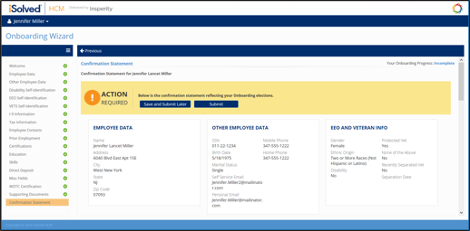
Employees can print a copy of their onboarding information for their own records and submit their completed information for approval.
All documents that employees e-sign in the Onboarding Wizard are automatically saved to their Employee Documents screen when they are hired, including signed acknowledgements, fillable PDFs, I-9 and tax forms, uploaded documents, self-identification forms and WOTC certifications.
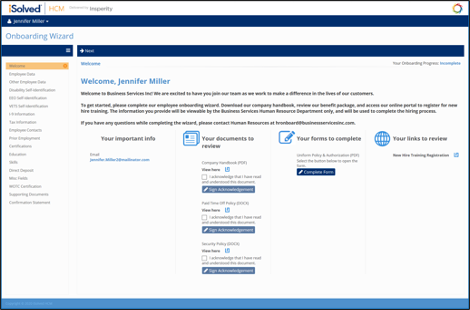
Once an employee has acknowledged all documents and completed all required sections of the wizard, they can then submit their information. This completes the Onboarding Wizard for the employee and sends an email notification to the user or user(s) that you have designated to complete the hiring process in iSolved.
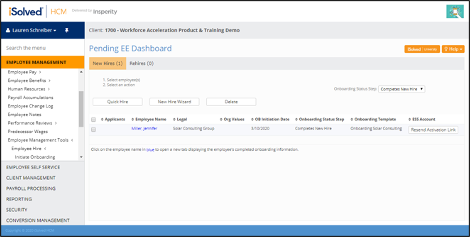
Those users then access the Pending EE Dashboard to complete the hire either through Quick Hire or the New Hire Wizard. Information provided by the employee will be populated and can be reviewed and corrected, if necessary. The administrative user will then complete any remaining fields, including the employee’s salary information and job assignment.
How do I begin using the Onboarding feature in iSolved?
Contact your assigned payroll specialist to request the setup for onboarding. Your payroll specialist will work with you to gather the necessary information to complete the configuration and let you know when it is ready to be used.
Onboarding in iSolved helps reduce the amount of data your HR team has to enter from paper forms and empowers employees to input and manage their own information.