iSolved’s June 14, 2019, product release included important changes to the Personal, General, EEO, Disability and Veterans screens to align with federal reporting guidelines.
Personal tab and General screen changes
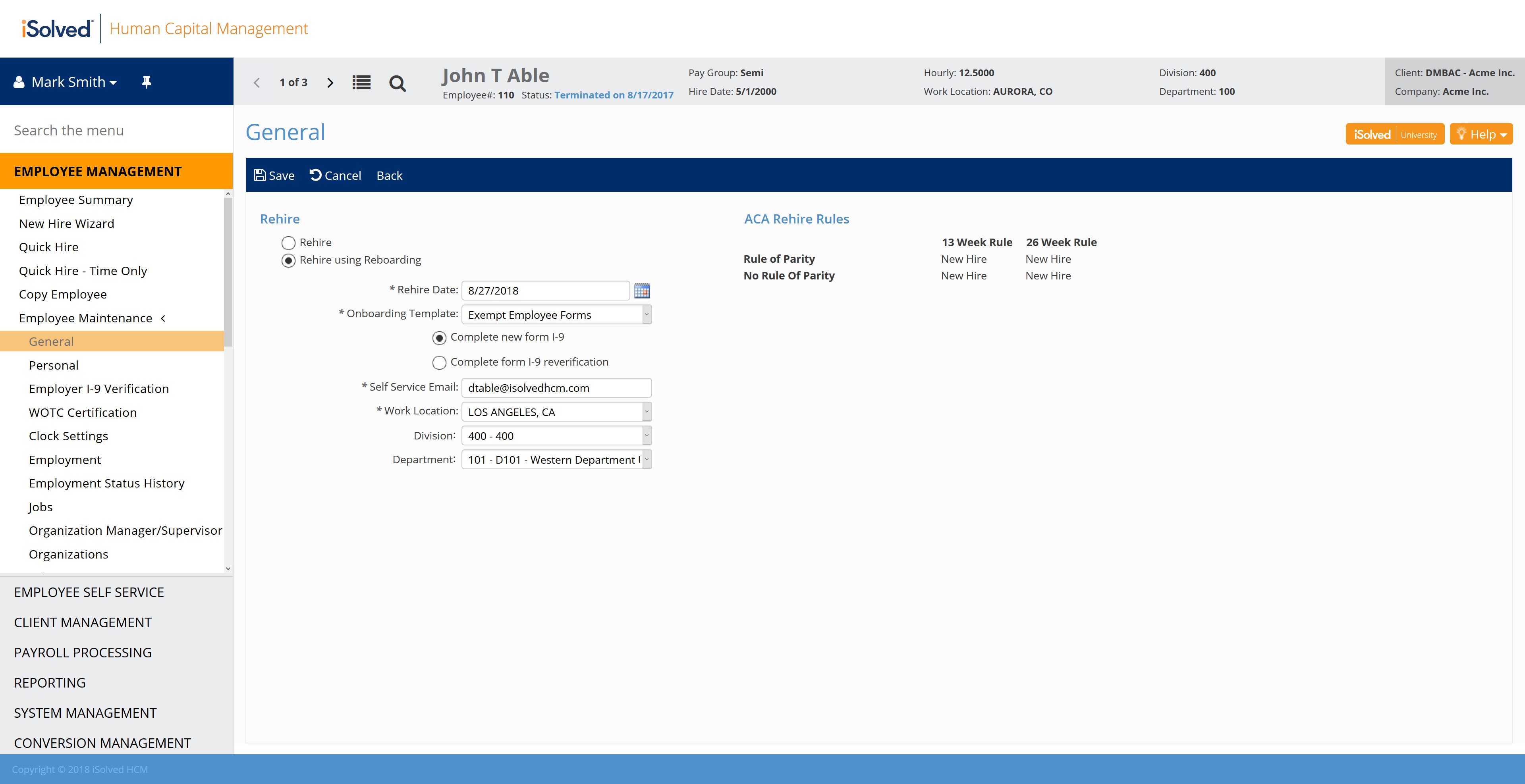
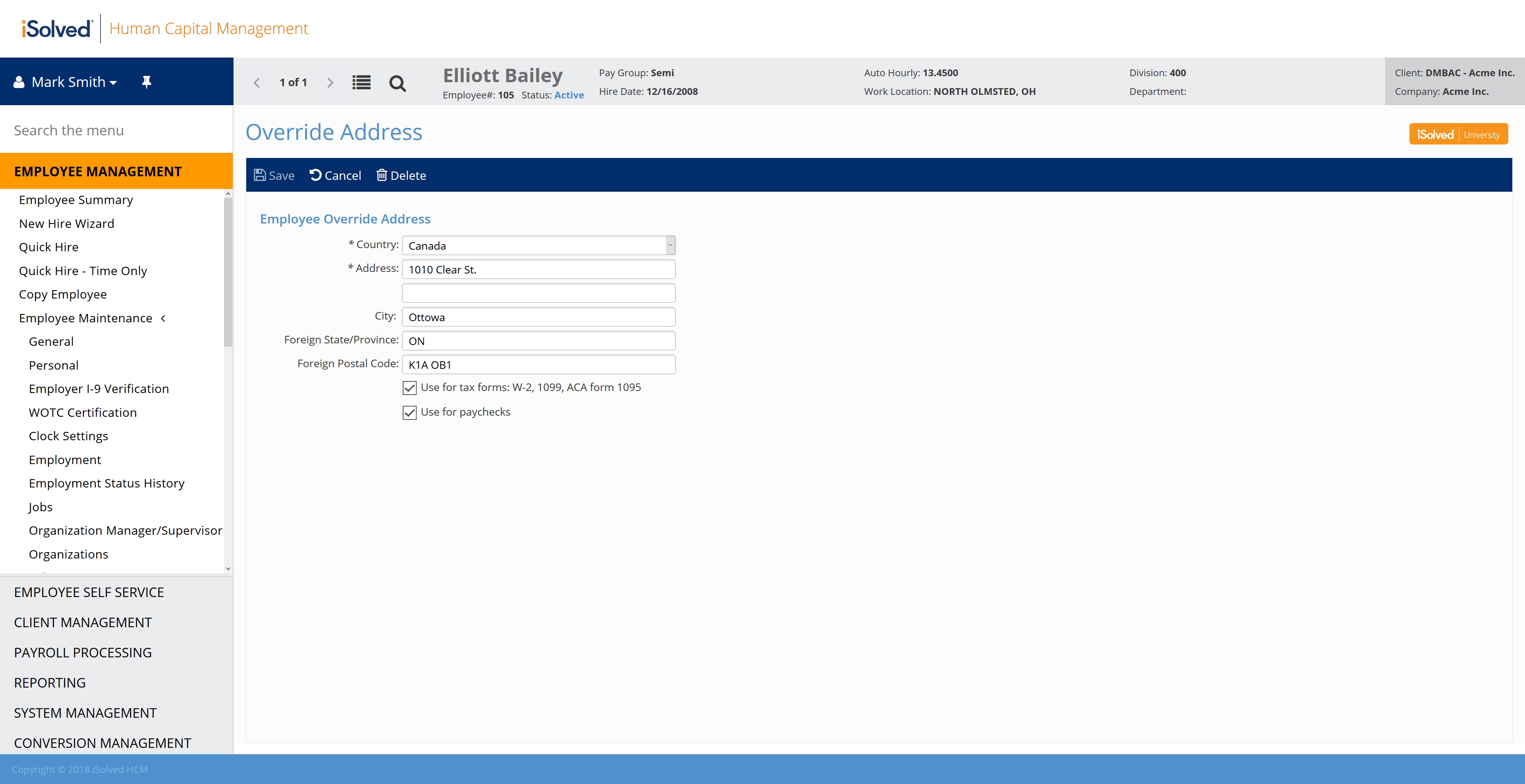
- The phone and email information previously displayed on the Personal screen has been moved to the employee General
- Client administrators with access to the employee General screen can view the fields outlined in red below, which were previously located on the Employee Management > Employee Maintenance > Personal screen:
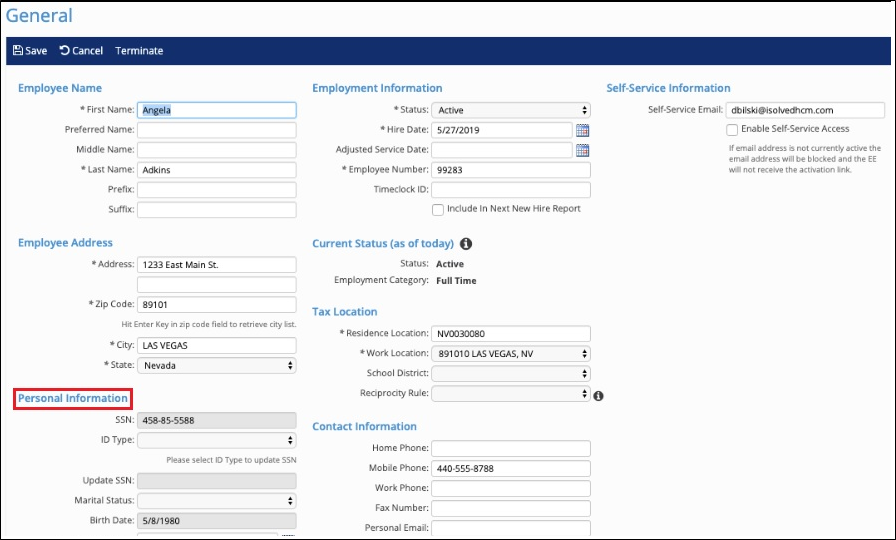
- The Tobacco Use field is now effective dated to support benefits with costs related to tobacco use. Employees can update the Tobacco Use field during benefit enrollment for benefits with costs based on tobacco use.
- The Height in Inches and Weight fields are no longer available.
- Employees who used Employee Self Service (ESS) to update their phone and personal email fields can continue to do so if the Name/Address or Address Only self-service roles and workflows are enabled. If the phone and personal email fields were enabled in Onboarding Templates, candidates will continue to update them through Onboarding. Those same details will be visible on the General screen once an employee is hired.
Personal EEO Tab Changes
- The new Federal Reporting Data screen has replaced the EEO tab of the Personal
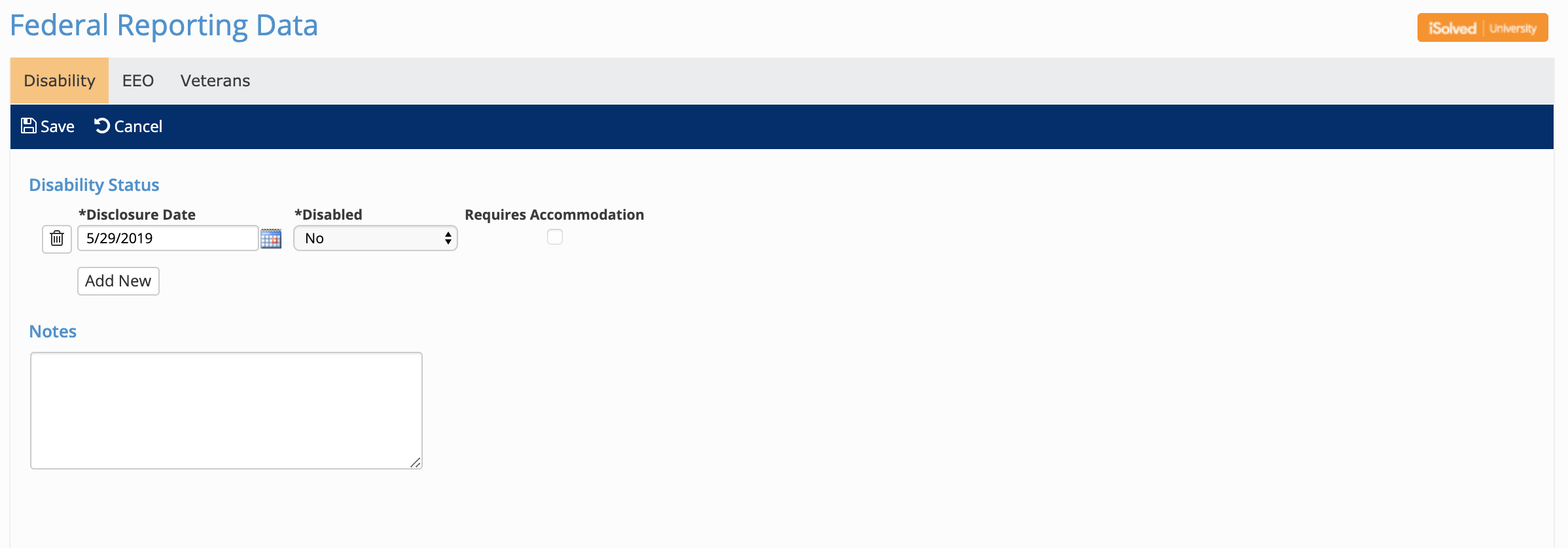
- Client administrators with access to the Personal EEO tab under Employee Maintenance > Employee Management > Personal have been granted access to the new Federal Reporting Data The new screen follows federal reporting guidelines and includes changes to the following fields:
- EEO-1 Voluntary Self-Identification Information
The existing Ethnic Origin and Gender fields have not changed since they were already consistent with the information collected on EEO-1 Voluntary Self-Identification Forms that follow the Equal Employment Advisory Council standards. - Form CC-305 Voluntary Self-Identification of Disability Information
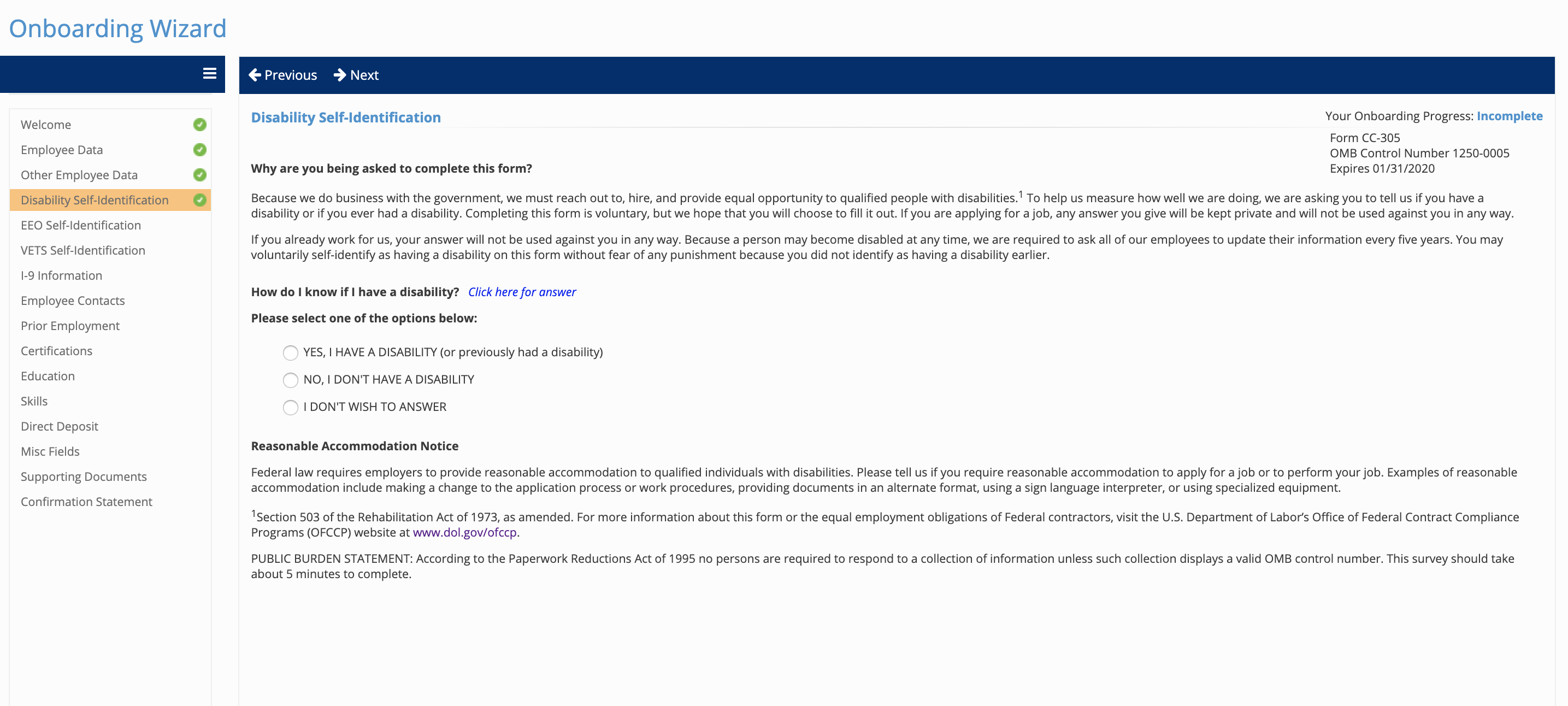
Changes have been made to the Disability field so the choices reflect the options on the current Department of Labor Form CC-305 – Voluntary Self-Identification of Disability. The current choices are:
- Yes – This option mirrors the YES, I HAVE A DISABILITY (or previously had a disability) option on the Voluntary Self-Identification of Disability form. Any employee who previously had a specific disability selected has been updated to Yes.
- No – This option mirrors the NO, I DON’T HAVE A DISABILITY option on the Voluntary Self-Identification of Disability form. Any employee who previously selected No Disability will continue to reflect that choice.
- Chose not to answer – This option mirrors the I DON’T WISH TO ANSWER option on the Voluntary Self-Identification of Disability form. Any employee who previously selected Chose not to answer will continue to reflect that choice.
- Yes – This option mirrors the YES, I HAVE A DISABILITY (or previously had a disability) option on the Voluntary Self-Identification of Disability form. Any employee who previously had a specific disability selected has been updated to Yes.
- Voluntary Self-Identification of Veterans Information
Changes have been made to the Veteran Information section to support the self-reporting guidelines for Government Contractors who follow affirmative action rules to employ veterans. - Military Status choices continue to reflect previous selections.
- Recently Separated Veteran is no longer available to select as a checkbox. It is automatically enabled when the Active Duty Separation Date is entered. Any employee who previously selected Recently Separated Veteran without specifying their Active Duty Separation Date will need to enter the Active Duty Separation Date in order to be classified as a recently separated veteran. If the employee had previously selected Recently Selected Veteran and had a valid Active Duty Separation Date, the information will continue to be reflected.
- Armed Forces Service Medal Veteran is no longer available. Any employee who previously selected Armed Forces Service Medal Veteran has been updated to Other Protected Veteran.
- If an employee selected Other Protected Veteran previously, their choices continue to reflect their previous selection. If an employee previously selected Armed Forces Service Medal Veteran or Disabled Veteran, the Other Protected Veteran choice has been selected instead.
- Disabled Veteran is no longer available. Any employee who previously selected Disabled Veteran has been updated to Other Protected Veteran.
- Chose Not To Answer continues to reflect previous selections.
- EEO-1 Voluntary Self-Identification Information
Client administrators with access to the Personal EEO tab under Employee Maintenance > Employee Management > Personal have been granted access to the new Federal Reporting Data screen.
Employees who previously had access to the Personal EEO Updates screen in Employee Self Service (ESS) can now update that information on the new ESS Federal Reporting Data screen.
Onboarding Changes
- Three new voluntary self-reporting screens are available to include in your onboarding templates.
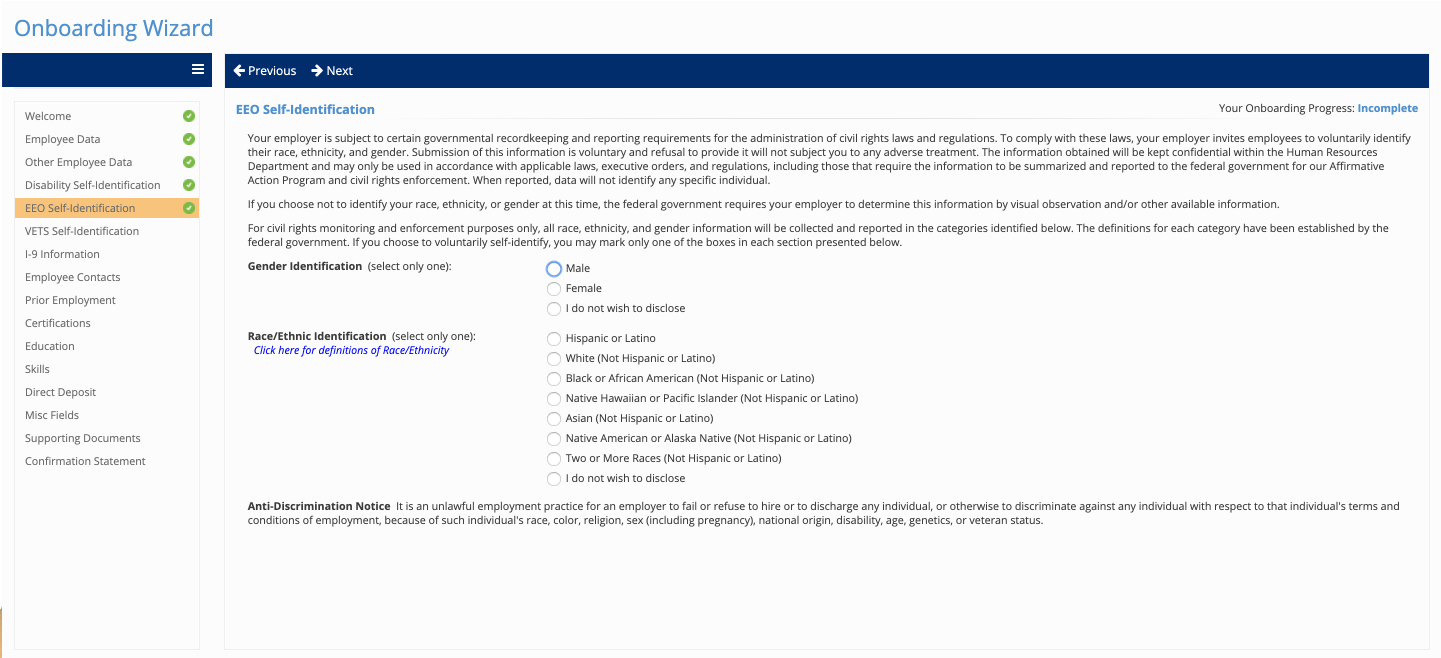
- EEO Self-Identification follows the Equal Employment Advisory Council standards for EEO-1 voluntary self-identification.
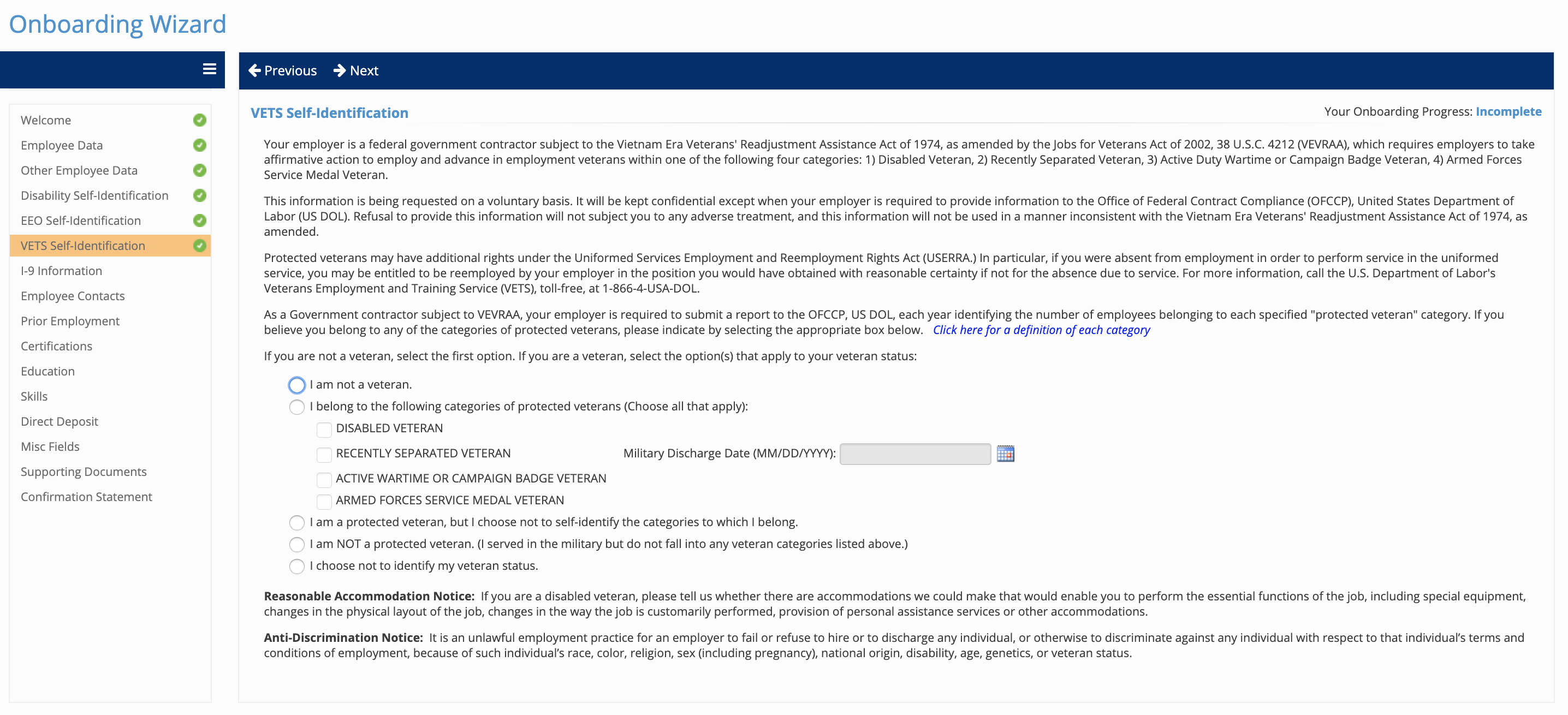
- VETS Self-Identification follows the federal guidelines for government contractors who voluntarily collect veterans’ information for affirmative action compliance.
- Disability Self-Identification mirrors the Department of Labor form CC-305 – Voluntary Self-Identification of Disability.
- EEO Self-Identification follows the Equal Employment Advisory Council standards for EEO-1 voluntary self-identification.
These changes support compliance with voluntary reporting standards for gender, ethnicity, disability, and veteran status. When employees complete these screens during onboarding, an electronically signed version is automatically saved in their Employee Documents. The information is also available on the Federal Reporting Data screen once you hire the employee.
If you would like to update your ESS Roles, workflows or Onboarding Templates based on these changes, please contact your dedicated payroll specialist for assistance.