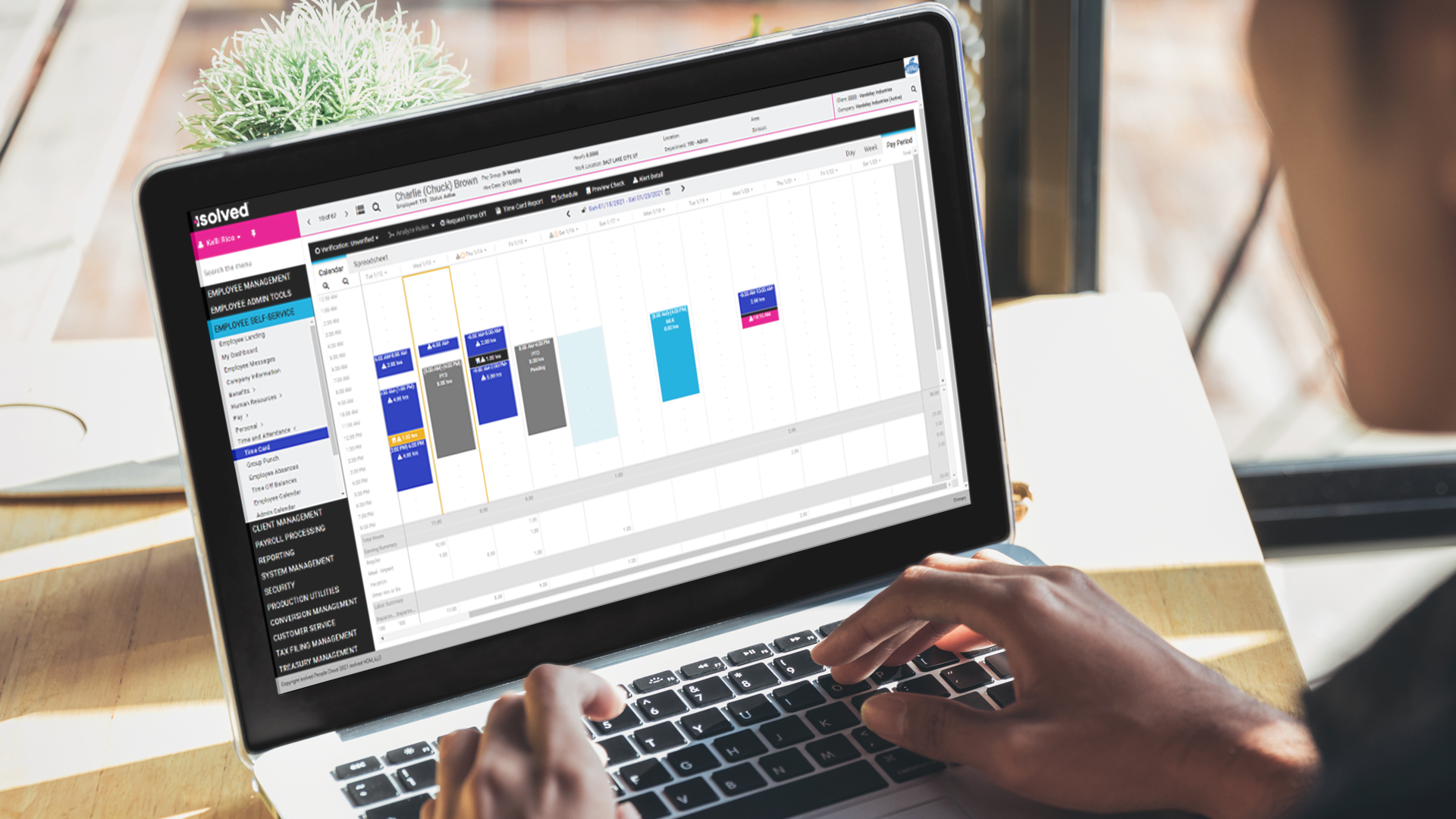
The isolved® v. 7.2 product release includes some new updates for payroll and benefits. It was released by isolved on Friday, February 19, 2021.
Updates to HR and payroll
Resetting workflows
Updates to pending time off requests
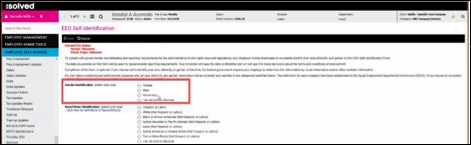
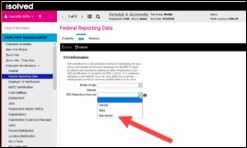
Added non-binary gender option
Updates to benefits
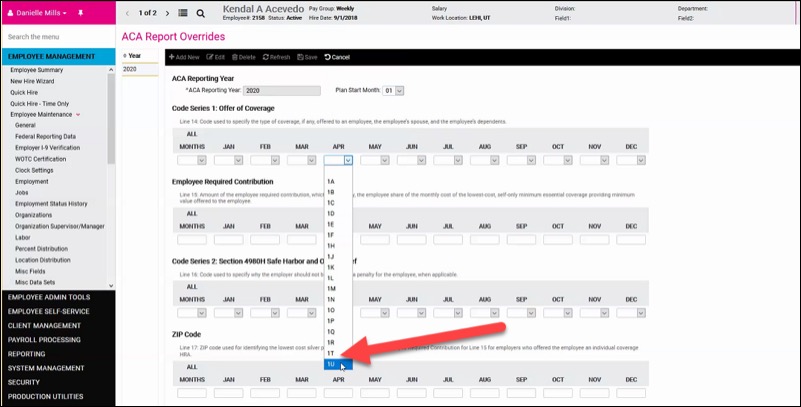
Update to ACA level of coverage override options
HR and payroll
Resetting workflows
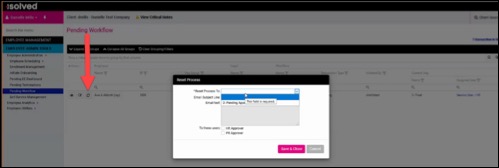
New functionality has been added to workflows that will allow the Assigned User to reset the workflow to a previous step (or user) in the workflow. Prior to this new functionality, users would need to reject the workflow and have the employee submit the request again. This would return the workflow to the beginning.
Now, when the Assigned User clicks the button to reset the workflow, they can select to which step or user to reset the process. Also, add an email text to users in the workflow who need to be notified of the reset.
Update to pending time off requests
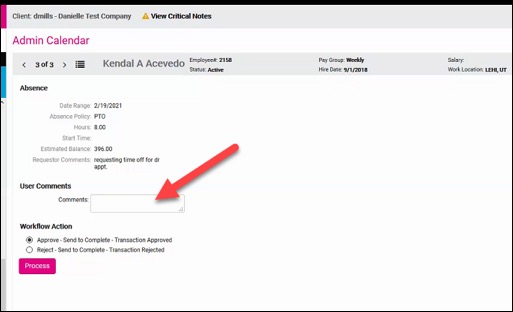
The new version now allows approvers to add comments when approving or rejecting a time off request.
Non-binary gender option added
The latest update expands option under “gender” to include a “non-binary” option. This option will also be added to the employee’s EEO Self-Identification screen in Employee Self Service and the EEO Information tab of the employee’s Federal Reporting Data screen in Employee Management. If state EEO reports support the non-binary gender, it will be used. For federal EEO reports or states that do not support the option, the employee will be reported the same as the existing “Chose not to provide” option.
Benefits
Update to ACA level of coverage override options
To support Individual Coverage HRA (ICHRA) plans, the new 1T and 1U options for Code Series 1 on Form 1095-C, line 14, will be added as overrides.
If you are providing individual coverage HRAs in lieu of health insurance and need to report that coverage on form 1095-C, you will need to enter these new codes as overrides for each employee. isolved will not automatically assign these codes.
For more information about the new offer of coverage codes, the IRS announcement is now available. An ACA Code Cheat Sheet is also available in isolved University.
Need additional assistance?
For assistance entering the employee ACA report overrides, please contact your Insperity® benefits specialist.
On Feb. 5, 2021, isolved™ released a major update that included significant changes to the product’s overall look as well as the menu structure. The release also included changes for HR, payroll, and timereporting. In this article, we’ll revisit some of the changes for two broad categories:
HR and payroll-related changes
Time reporting
Additional information about these new features and functionality will be available in isolved University.
If you have any questions, please reach out to your assigned payroll specialist.
HR and payroll-related changes
isolved rebranding
When you first logged into isolved after the release, you likely noticed that the platform’s look changed. This was done to reflect isolved’s recent rebranding effort. As part of that initiative, you now see an ADA-compliant color scheme when navigating the platform.
General navigation updates
Menus
The employee menu has a pink background.
Main menu headings in the navigation bar on the left have a black background with white lettering.
When you select a main menu, the background will change to light blue.
When you select a submenu, a light blue border will appear.
When you select an item on the main menu or submenu, it will be highlighted in royal blue.
Main window
When you select an item in the main window in the screen’s center, it will be identified by a gold outline.
Action bars
Main action bars have a black background and white lettering.
When there are tabbed options underneath a main action bar, your selected tab will have a light blue background.
Time card updates
Employee time
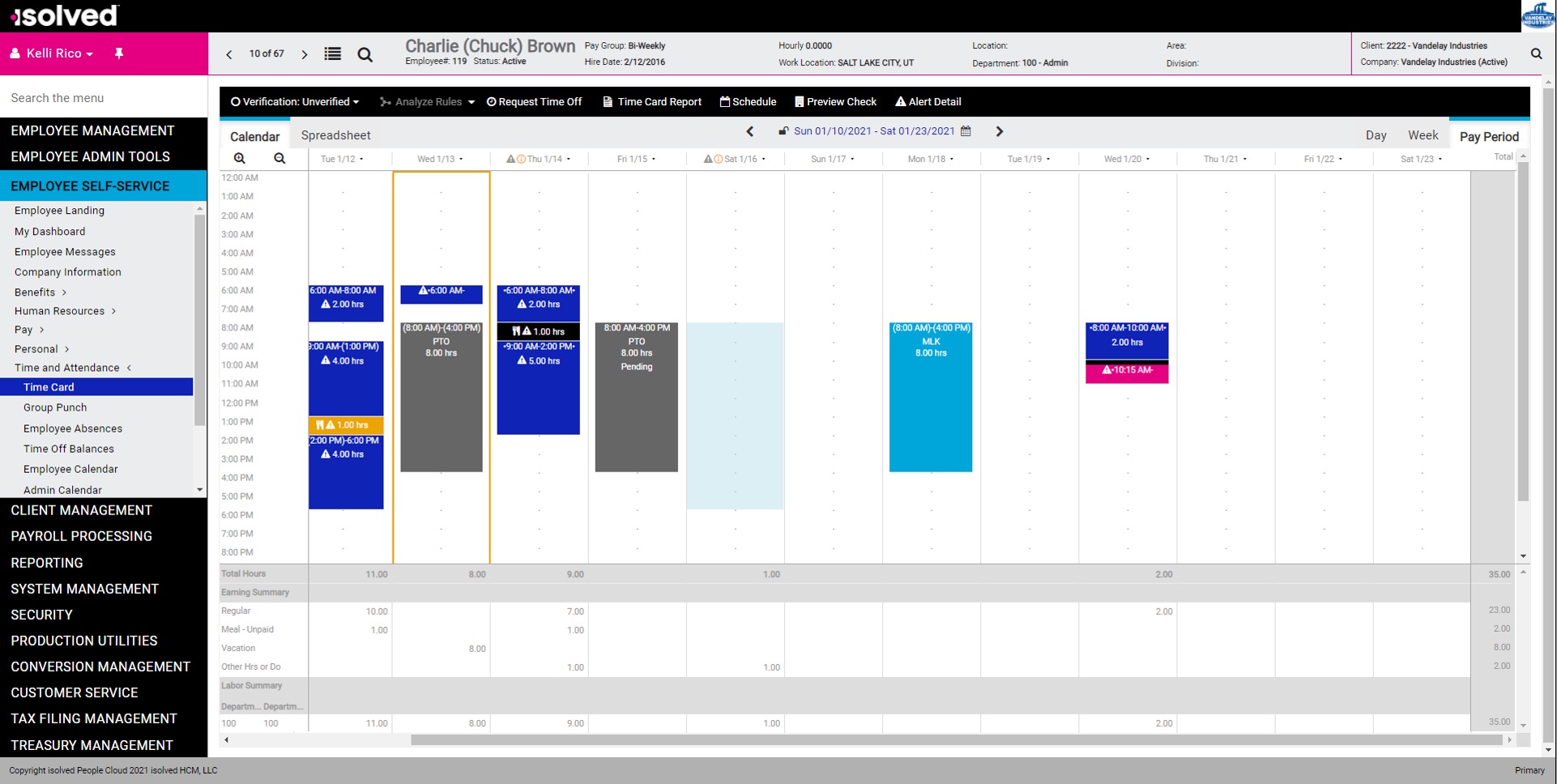
The current day is highlighted with a gold border.
Hours worked, including blocks of time between in and out punches, are displayed with a royal blue background.
Meals and breaks have a black background.
Pending and approved time off has a grey background.
Company holidays have a turquoise background.
Alerts
Critical and high alerts are shown in pink.
Medium alerts are shown in gold.
Low alerts are shown in the same royal blue as worked time.
Schedules
Employee schedules will continue to use the colors defined on the Manage Shifts screen.
New Employee Admin Tools menu
A new menu, Employee Admin Tools, has been added to the left-hand menu structure. Some menu items from the former Employee Management and Client Utilities menu were relocated here; other options have been added, too. The intention is to consolidate Employee Administration tools into one area.
As you can see from the illustration, there are three new primary submenus under the Employee Admin Tools menu.
The Employee Administration submenu now contains Initiate Onboarding, the Pending EE Dashboard, the Self-Service Management screen and a few other menu items.
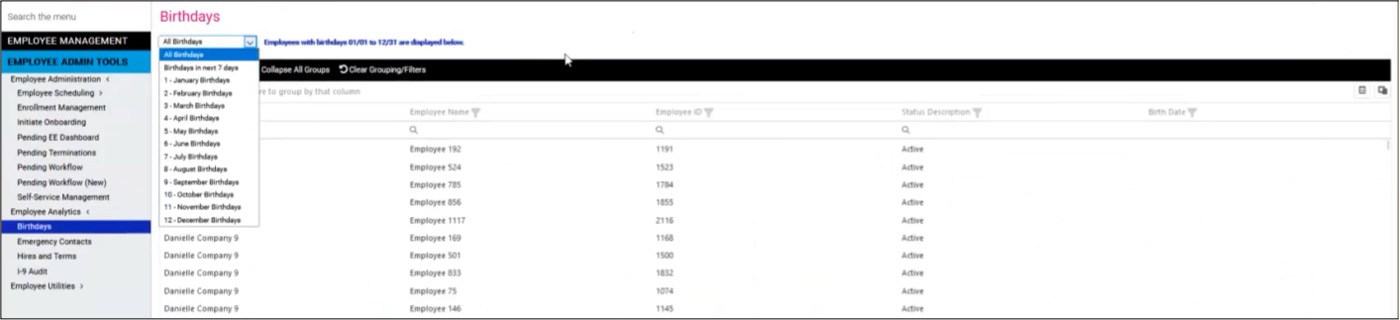
An Employee Analytics submenu will be added which will include some new menu options (e.g., Employee Birthdays) and older options (e.g., Employee Contacts) that were relocated.
An Employee Utilities menu has been added. It now contains items related to employee administration (Employee Change Log, Employee Mass Change wizard, Wage/Tax Adjustments) relocated from the former Client Management menu.
Remember: You may see different menu items based on the roles that are assigned to you as a user. If you have any questions about the menu options that you have available, please reach out to your assigned payroll specialist.
Summary of employee menu changes
To help you become acquainted better with the new menu structure, below is a table summarizing changes.
If you have trouble finding a specific menu item, try using the Search the menu feature.
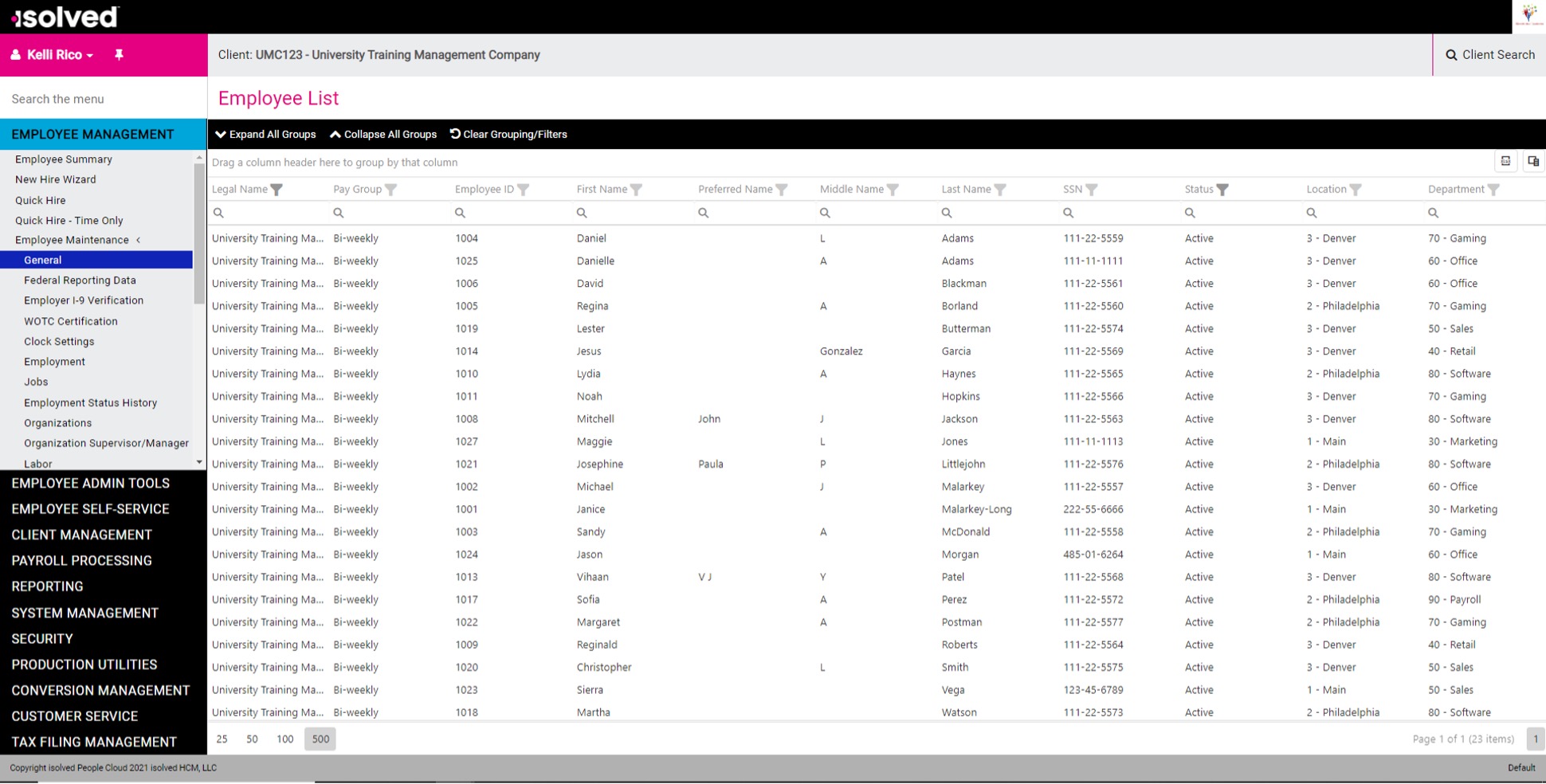
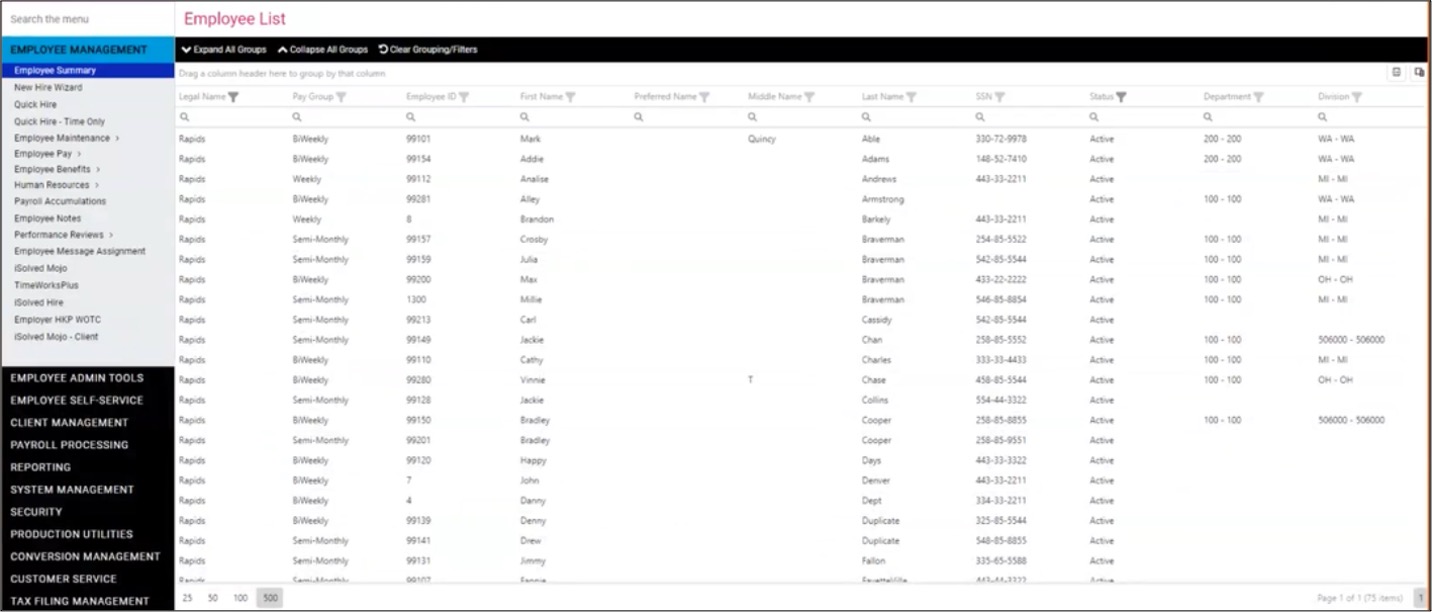
With this release, a new Employee List view is available when you go to the Employee Summary screen. With it, you can customize your view to locate employees more easily. You can also choose which columns are displayed and group employees by organization values or other employee assignments. Plus, you can add additional employee fields like status and job – options that were not available before.
Choosing columns
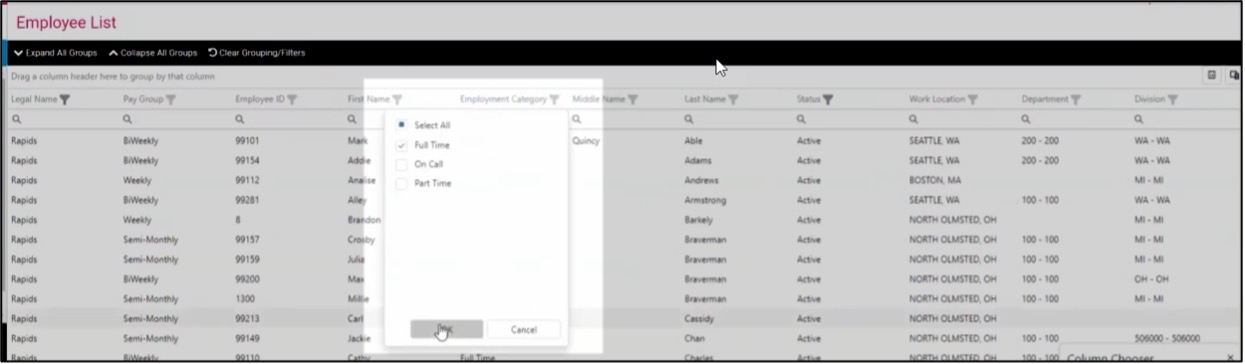
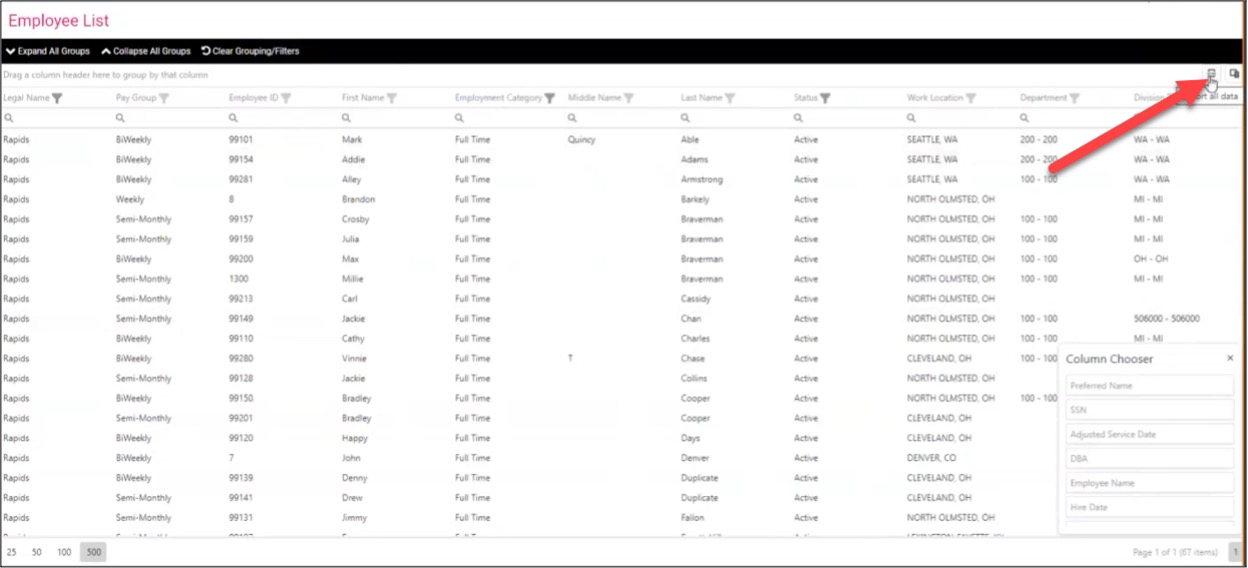
The Column Chooser icon located in the top right-hand corner will launch the Column Chooser pop-up (see illustration). From there, you can drag-and-drop columns to and from the Column Chooser into the Employee List to customize your list.
Filtering by column values
You can now filter by values within a column. For example,, if you want to filter to only see employees with an Employment Category of Full-Time, you will first make sure that the Employment Category column is included in the Employee List using the Column Chooser (see above). Then, you can choose the column header, select the values you would like to filter that column by, and click OK. Your Employee List will then only display those employees with the values you selected in your filter options.
Searching column values
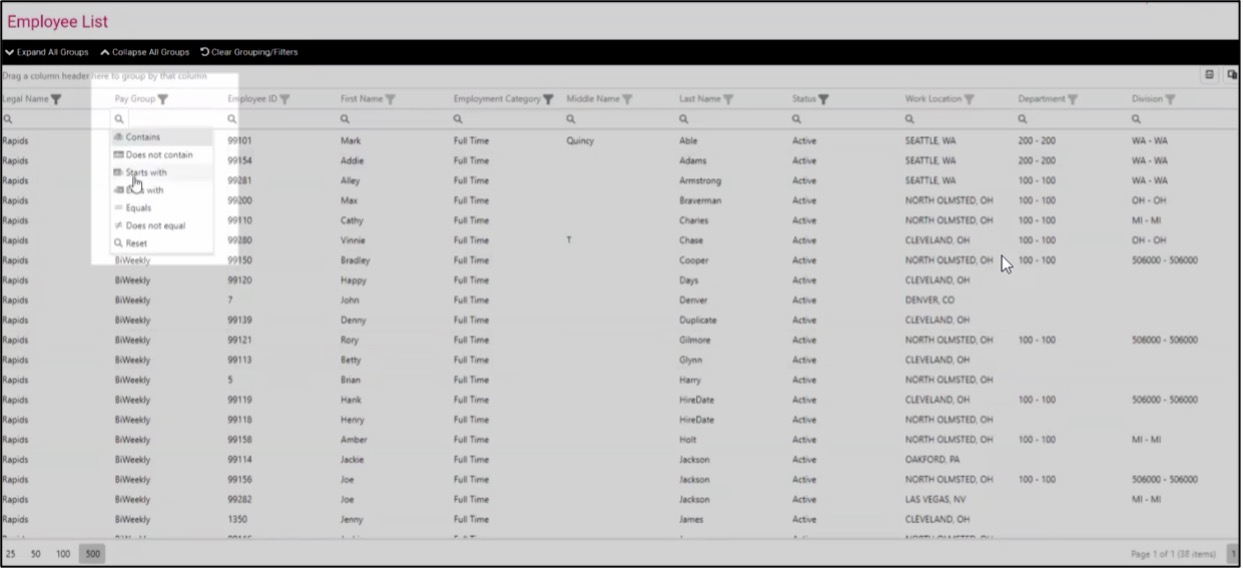
You can use specific search criteria for searching for values within a column. When you click the magnifying glass symbol under the column header, you’ll be presented with different search properties like “contains” and “starts with.” You can then the enter the value to search.
Exporting the Employee List to Excel
You can export the Employee List with the columns that you have selected and the filters that you have applied. Click the Export All Data button in the top right-hand of the screen. The data will then download as an Excel spreadsheet.
Grouping by column values
There is also a field that will allow you to group employees by unique column values by dragging the column header (pictured below). After grouping by that column, you can expand each category to see the employees included. You can also drag multiple column headers to this field if you would like additional sub-groupings applied.
Clearing grouping or filter selections
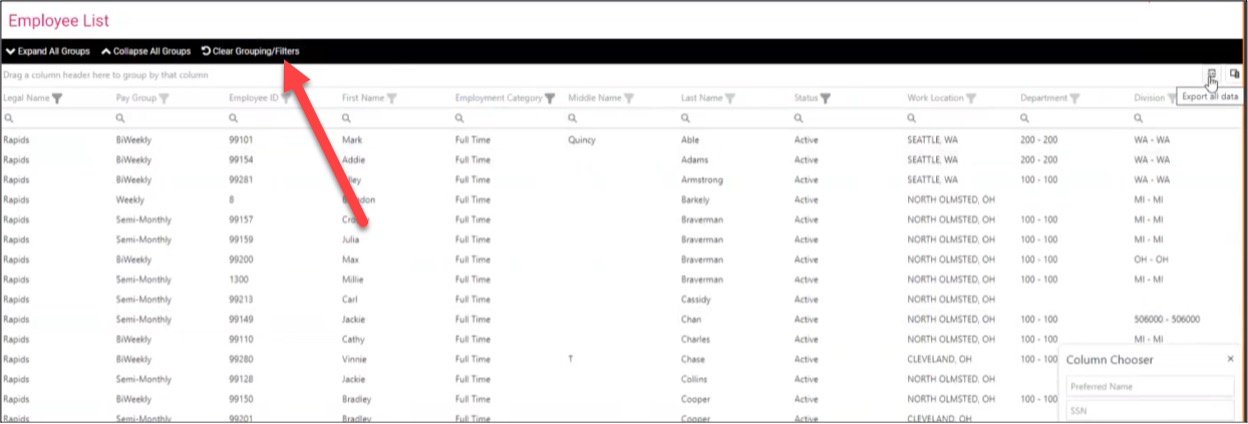
You can click the Clear Grouping/Filters button in the black action bar to clear the grouping and filtering selections you’ve made.
Your payroll specialist can also assist you with making default selections for the display of your employee list.
Emergency Contacts dashboard
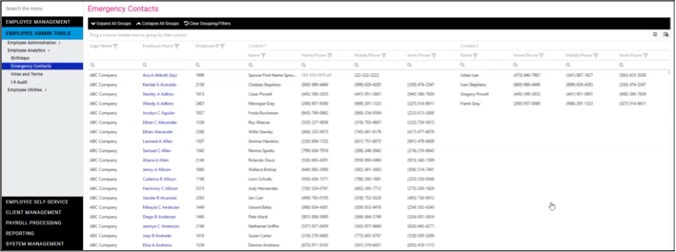
An Emergency Contacts dashboard has been added to assist users in easily identifying and creating emergency contacts lists. The same list customization tools (e.g., Column Chooser) that are being added to the Employee list are also available on this Emergency Contacts listing. The default view of this list will list the contacts by call order.
If you need more information about the employee’s emergency contacts, click their name (highlighted in blue) to access that employee’s Contacts screen.
Employee Birthday dashboard
The Birthdays dashboard will display employee birthdays coming up within the next seven days. You can also view birthdays by month or all employee birthdays at once. (Note that the birthday feature will only display the month and date, not the year.)
Access to Jobs screen for salary-restricted users
Previously, salary-restricted client users were unable to access the Jobs screen. This was because the Salary Grade field was displayed on the Job screen. Now, anyone with a role that provides access to the Jobs screen will be able to access the screen. For salary-restricted users, the Salary Grade field will not be displayed.
Updates to pay stubs
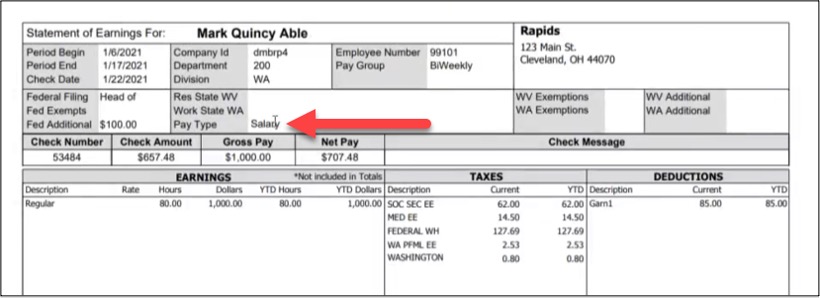
Employee Social Security numbers will be removed from all check formats. Employee pay types will be displayed on their respective pay stubs.
Pending Transactions and Completed Workflow
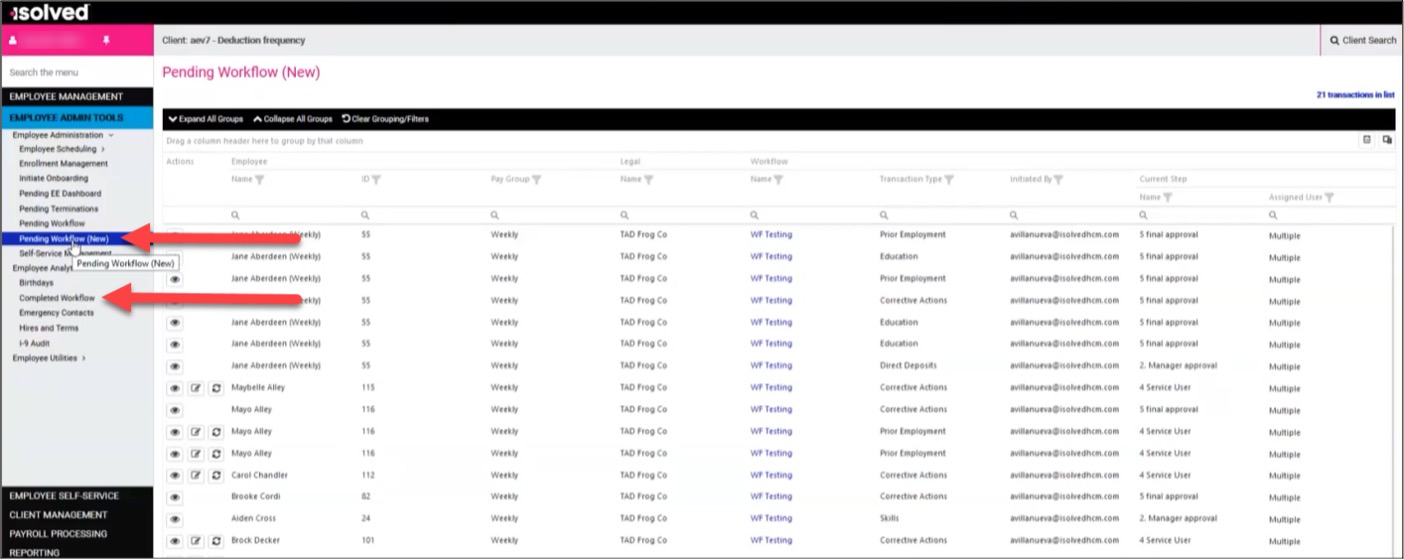
The new Pending Workflow screen located in the Employee Administration submenu under the new Employee Admin Tools menu lists employees with pending approvals.
The default view of this list includes:
Employee name
ID
Pay group
Legal Company
Workflow name
Transaction time
User who initiated the transaction
Current workflow step
User group assigned to the current step
If the workflow has multiple users or user groups assigned to a particular step, it will display “Multiple” and you can reveal those assigned by hovering over that word.
Workflows that have been completed will display on the Completed Workflow screen under the new Employee Analytics submenu.
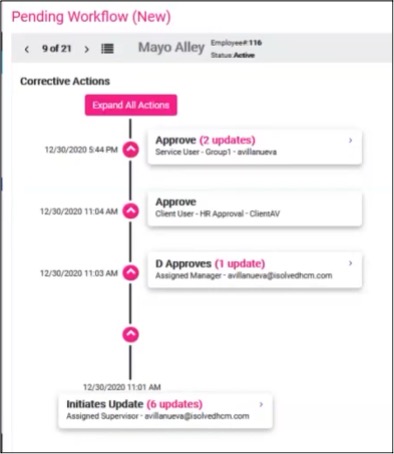
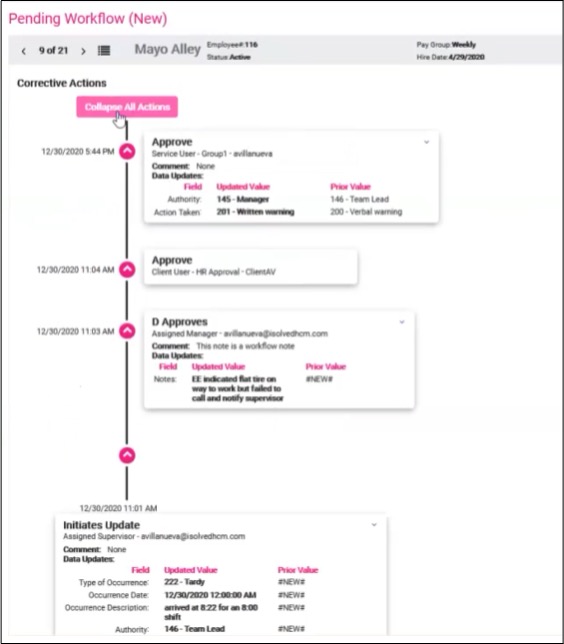
As part of the update, isolved has also created a timeline view of the workflow. This can be accessed by clicking on the View button next to each pending workflow listed. This timeline will show all steps that have already been completed in reverse chronological order, with the latest actions appearing at the beginning.
The Expand All Actions button will provide a more detailed view of each step of the workflow.
Time
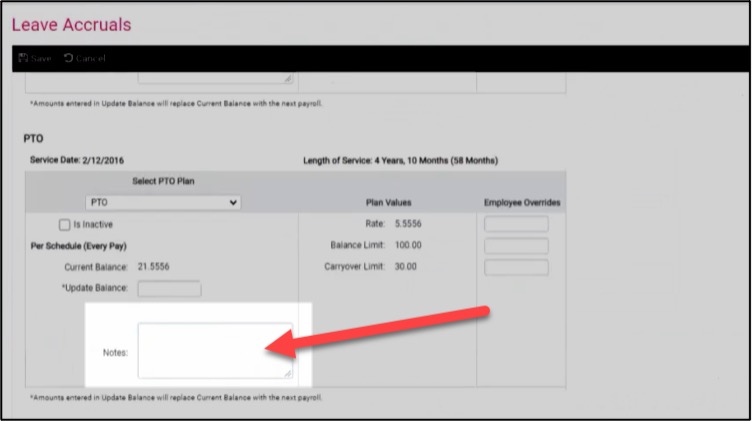
Notes field available in Leave Accruals
A Notes field has been added to the Leave Accruals screen under Employee Management > Employee Benefits.
In order to review notes associated with accrual balances changes, navigate to the Accrual Balance History screen. A new balance update indicator (shown below) shows when a manual balance update has occurred. Hover over the i icon to read notes that were added on the Leave Accruals screen for that payroll period.
Absences can be split when they cross midnight
Prior to this release, absences that cross midnight were recorded on the day they began. For example, if an employee’s eight-hour absence began at 8 p.m. on Monday and ended the next day at 3 a.m., it would be recorded as an absence using Monday’s date.
After this release, absences can be split based on the policy group settings. Once time is committed, two absences will be shown in payroll, since the hours will be recorded on the day they were worked. Using our previous example of a seven-hour absence beginning at 8 p.m. on Monday, the absence would be split into a four-hour absence on Monday (8 p.m. – midnight) and a three-hour absence (midnight – 3 a.m.) on Tuesday.
Scheduler button added to employee Time Card
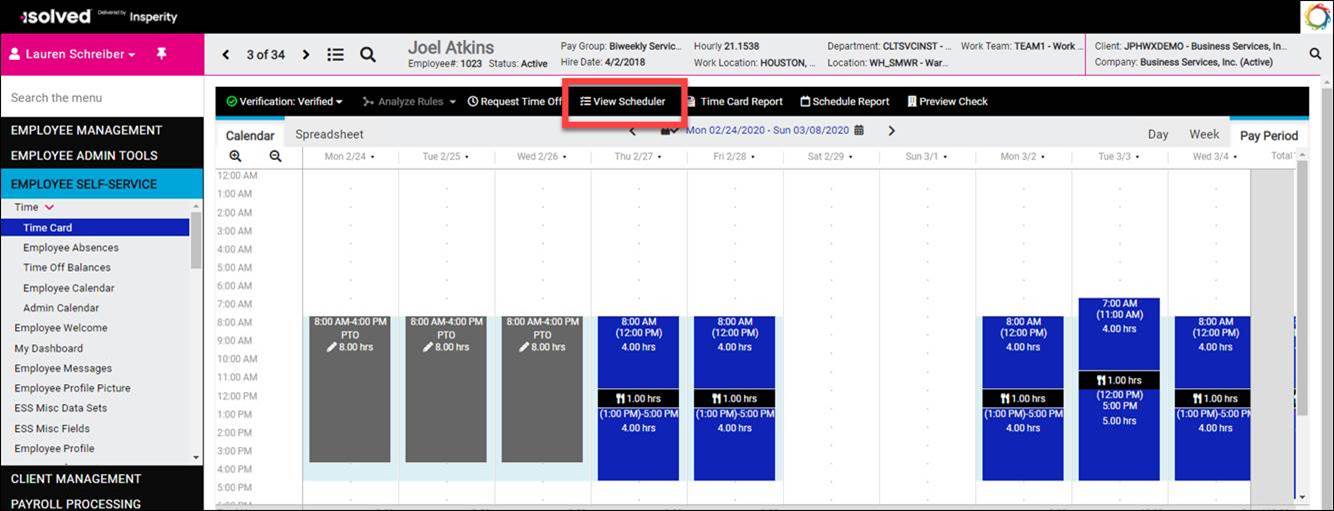
For clients using schedules in isolved Time, employees can now quickly access the Scheduler from the employee Time Card. A new View Scheduler button has been added in the navigation bar on the Calendar view.
To sum up
The early February isolved release offers new menus, functionality and a fresh platform look. Again, if you have any questions about the changes – or need help understanding how to navigate the platform in the wake of the updates, please contact your Insperity® payroll specialist.
iSolved’s upcoming release includes some new features, as well as preparations for year-end filings. This release was deployed on Friday, Dec. 11, 2020. The release included the following enhancements and updates:
HR & Payroll
Individual employee messages
Fix to correct rate override for Washington L&I
Additional federal and state withholding amounts are now displayed on Pay History screen
Benefits
2020 ACA and state filings
Time
Allow multiple meal adjustments on a single day
Continue reading below for more detail on each of these updates.
HR & Payroll
Individual employee messages
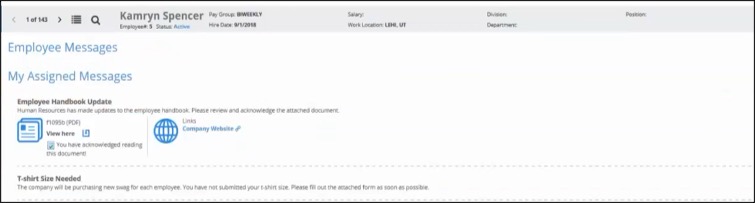
Client users can now send messages, links, and documents to individual employees. Previously, employee messages would be displayed for all employees. This new functionality allows you to share messages with a single employee. These messages will be set up under Employee Messages and then associated with the employee under a new menu item called Employee Message Assignment.
Company-wide messages will still be visible on the Employee Messages screen, but personalized messages will be shown in the separate My Assigned Messages section.
Additional instructions for adding employee messages can be found here.
Fix to correct rate override for Washington L&I
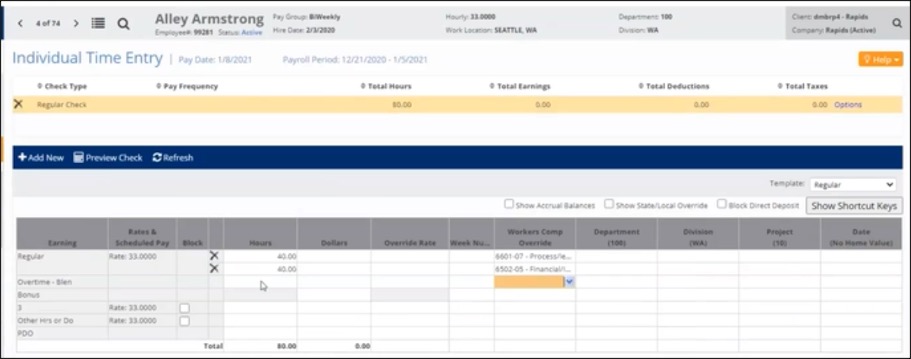
Previously, employers could not split employee time between multiple Washington Workers’ Compensation codes. All L&I calculations were based on the employee’s default Washington workers’ compensation code assignment. With this release, an employer can split the employee’s hours in time entry and enter different Workers’ Comp Overrides. The system will recognize the different rates and calculate the Washington L&I based on those different codes. This fix also applies when Workers’ Compensation code overrides are imported using Timecard Import.
This will only be effective moving forward unless you regenerate Workers’ Comp calculations for previous payrolls. If you have questions about this fix or need assistance with the regeneration of Workers’ Comp calculations on previous payrolls, please reach out to your assigned payroll specialist.
Additional federal and state withholding amounts are now displayed on Pay History screen
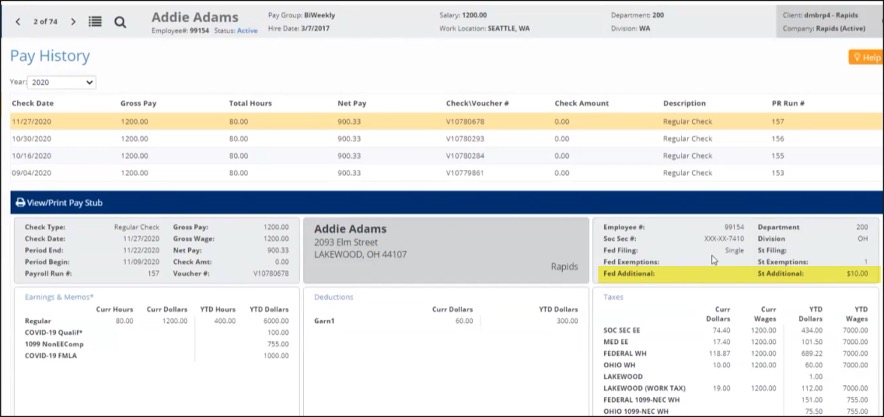
New fields have been added to the Pay History screen in order to display any federal or state additional withholding amounts that the employee has elected. This was previously shown on the Pay Stub, but not on the Pay History screen.
Benefits
2020 ACA and state filings updated
For customers using isolved for Benefits Administration with ACA Compliance, the updated product release includes files Insperity will use to satisfy new 2020 individual mandate filing requirements for employees in California and Rhode Island. Additional information on state filing mandates can be found in the 2020 Year-End Guide.
Time
Allow for multiple meal adjustments on a single day
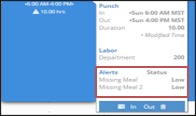
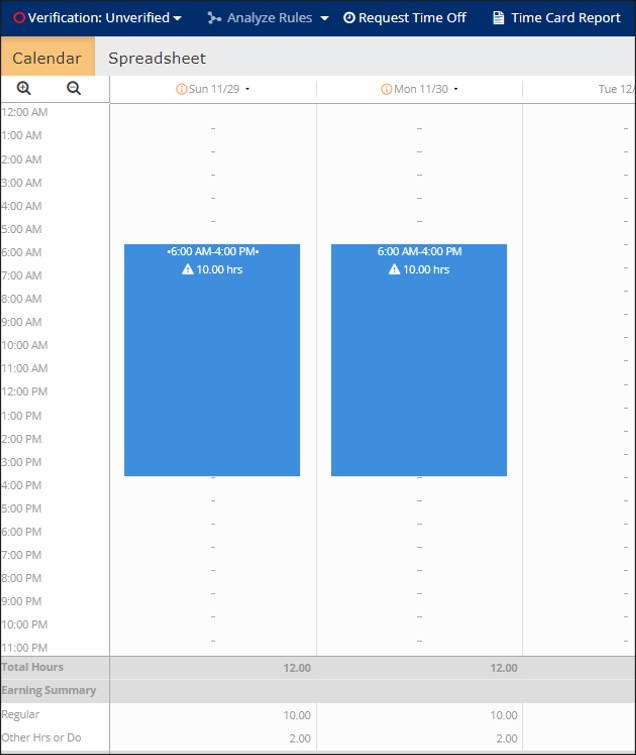
California employers that must pay for a second meal when an employee works more than 10 hours can now receive missed meal alerts for the second meal. For example:
An employee punches in from 8 a.m. to 8 p.m.
Two meals are required for the day, based on the meal rules associated with the employee’s shift or policy group.
The employee misses punching out for both meals.
Two missing meal alerts will now show on the hour record.
Two additional hours of meal penalty time will be generated, one from each alert.
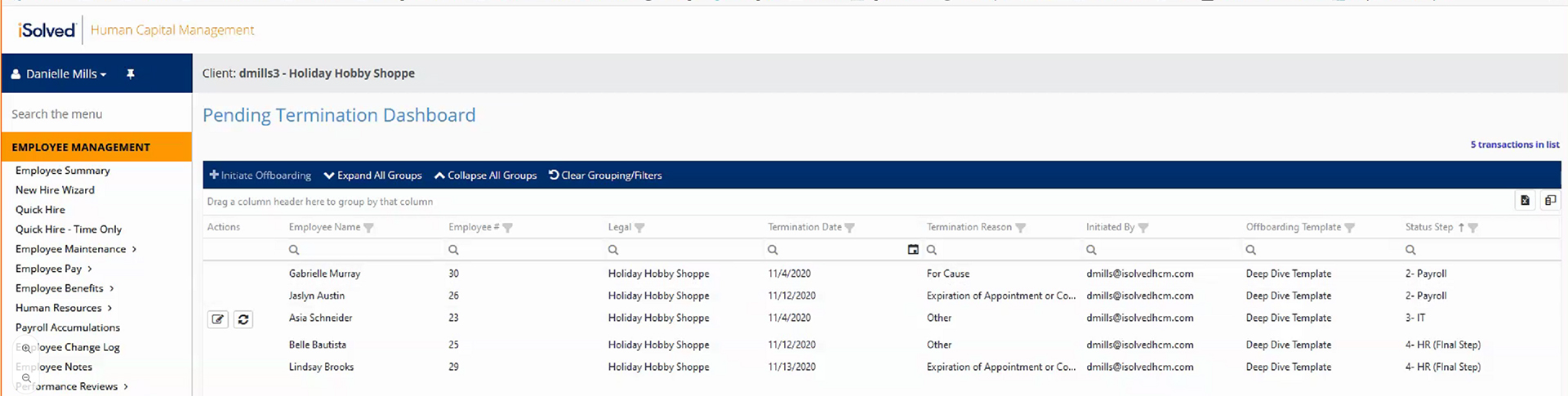
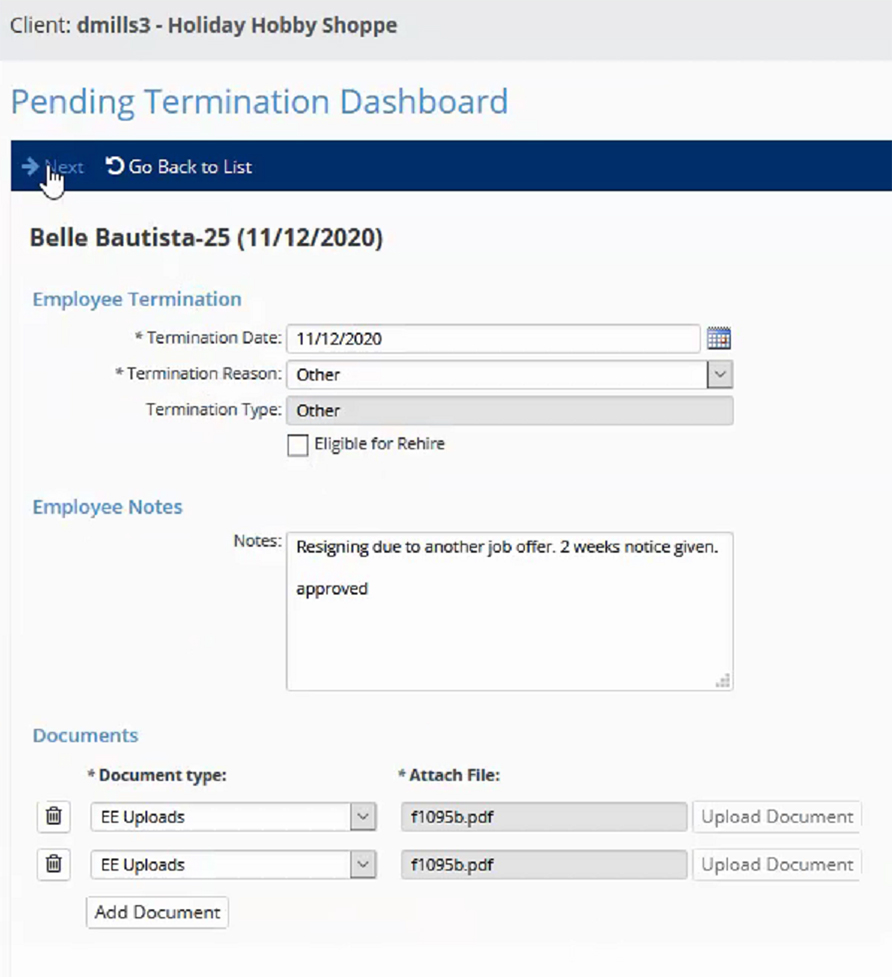
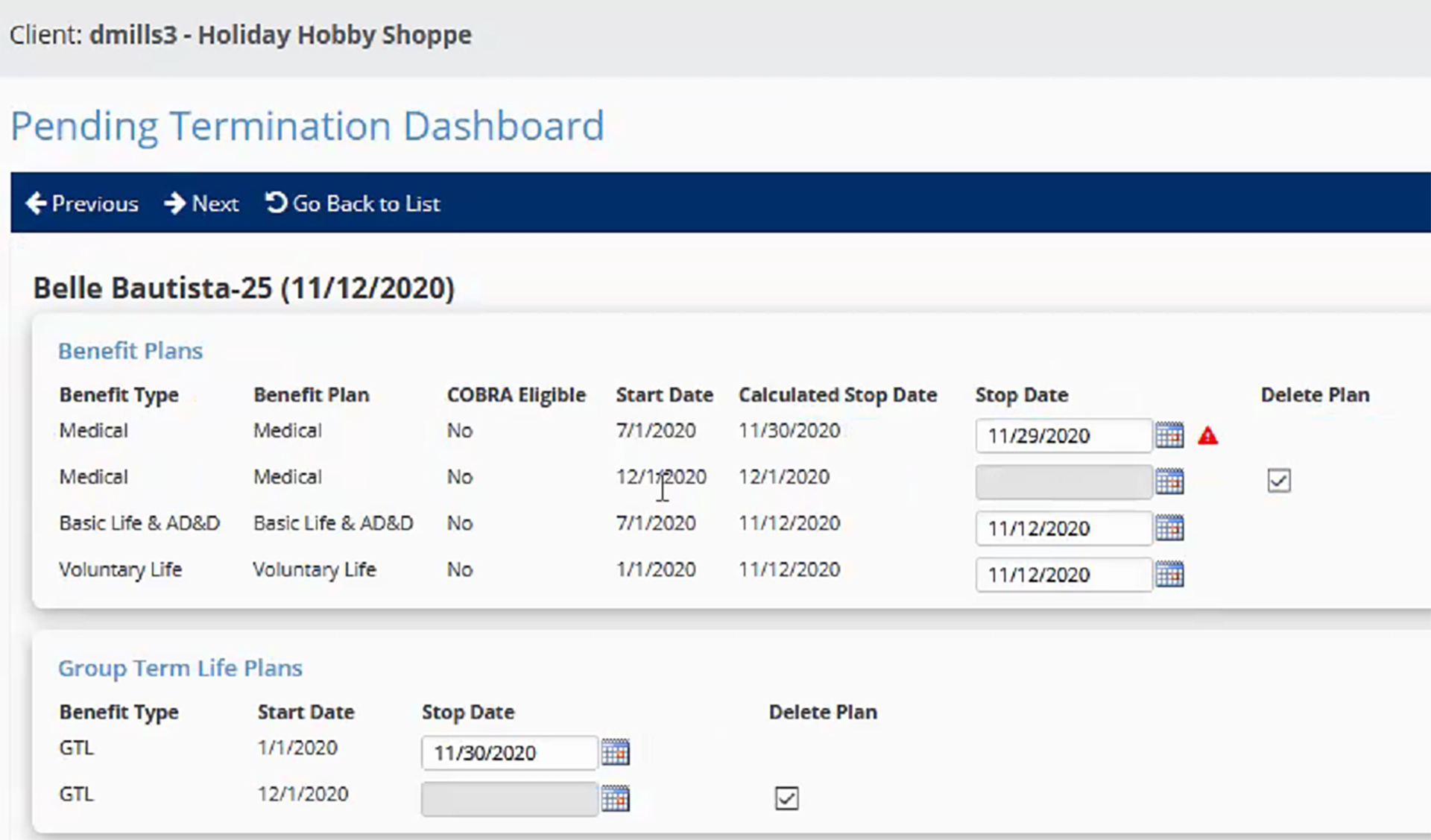
The Offboarding Wizard will allow customers to configure an offboarding process for terminating employees that allows assigned users to complete their steps in the termination process.
With the new offboarding functionality, you can streamline the process:
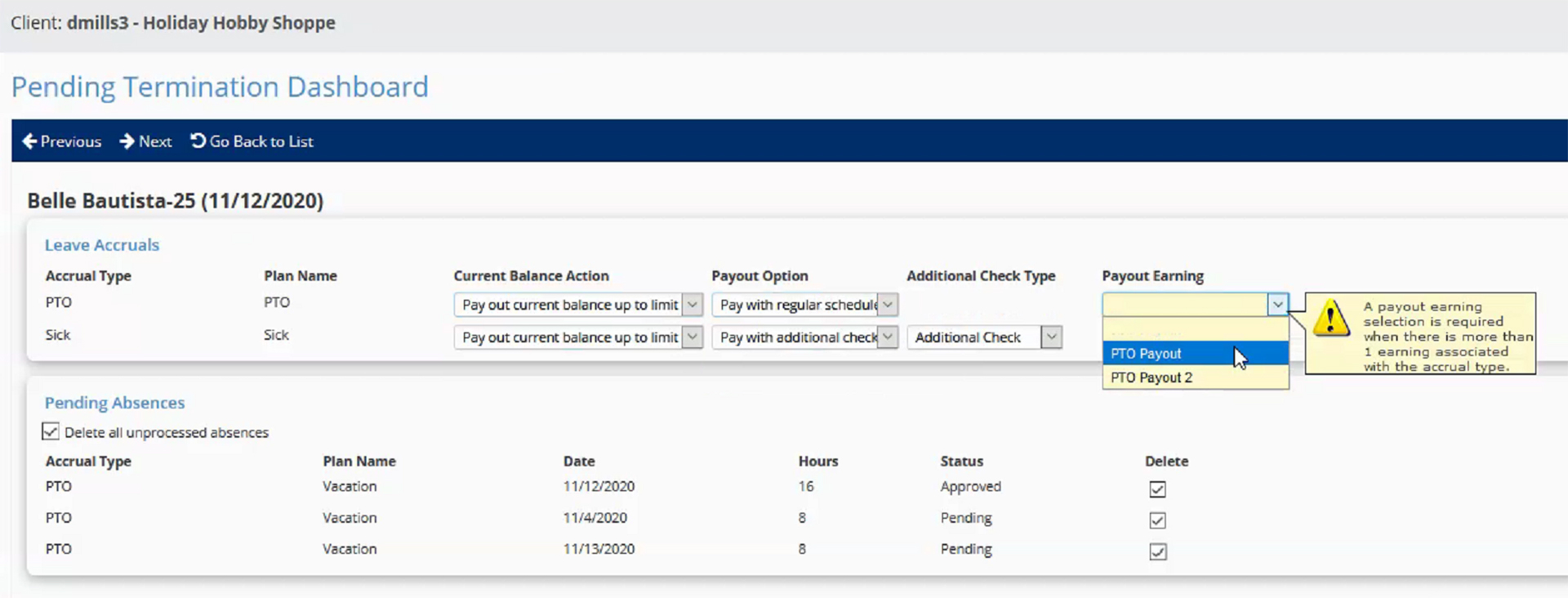
Enjoy a sneak peek of the new wizard below. You can see that the process will walk you and other team members step-by-step through the tasks required to complete an employee’s termination.
With this release, the option to payout unused time off balances can be automated through the Offboarding Wizard. Your Leave Accruals will need to be updated by your time or payroll specialist in order to allow this option to be available during offboarding.
Once the Offboarding Wizard is completed, the details are captured in the Offboarding Audit Report and automatically saved to the Confidential – Other tab of the Employee Documents.
An article will be released in iSolved University that will provide more details regarding the Offboarding Wizarding. If you would like Offboarding configured in iSolved, please reach out to your assigned payroll specialist.
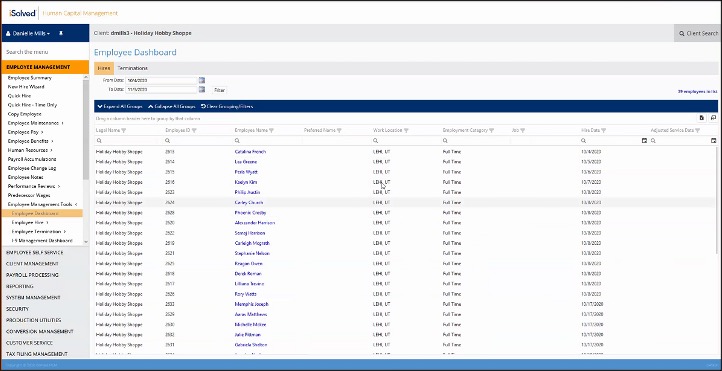
New dashboards added for hires, terminations, and I-9 management
iSolved has added new dashboards to provide valuable insight for processes around hiring employees, terminating employees, and managing the I-9 verification process.
Employee Dashboard The new employee dashboard provides a snapshot in time of employee hires and terminations with customizable columns and filters. The Hires tab displays employees whose hire or rehire dates fall within the range you specify. Employees with multiple hire dates within the date range will display multiple employment periods. Columns can be customized, sorted, filtered, and grouped to display information that works best for your user preferences. Users can click the employee’s name to quickly access their General screen right from the dashboard.
The Terminations tab displays employees whose termination dates fall within the range you specify. This dashboard will display multiple employment periods if employees have multiple termination dates within the date range. The employee name provides a shortcut to the employee’s General screen to easily access additional information or make changes. The columns on the dashboard can also be customized, sorted, filtered, and grouped to display the information that you need to review.
Data from these dashboards can be exported to an Excel workbook.
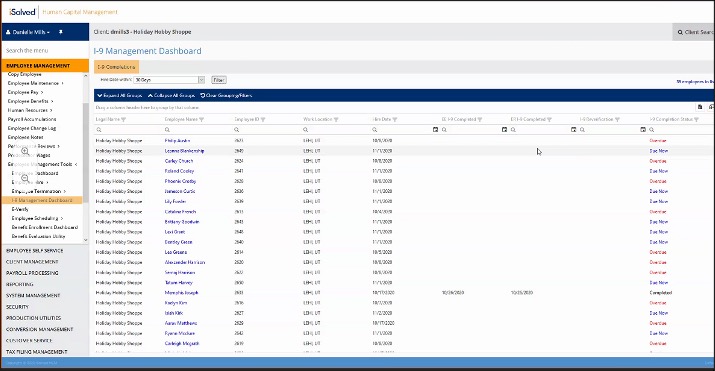
I-9 Management Dashboard The new I-9 Management Dashboard is a tool to help customers stay in compliance with I-9 rules and regulations. To ensure timeliness, this dashboard displays the current verification status for employees with hire dates within 3 days, 7 days, or 30 days. From there, you can quickly access the employee I-9 details by clicking on their name.
The I-9 dashboard includes columns to display the completion dates for the employee and employer portions of the form, including reverifications for rehired employees. You can verify the timeliness of the I-9 process by viewing employees using these statuses:
Due Now: If the employee and/or employer has not completed their portion of the I-9, and it is within the 3 business days from the hire date.
Overdue: If the employee and/or employer has not completed their portion of the I-9, and it is beyond the 3 business days from the hire date.
Completed Timely: If the employee and/or employer has completed their portion of the I-9, and the completion date for both was within the 3 business days from the hire date.
Completed: If the employee and/or employer has completed their portion of the I-9, but the completion date for either was after the 3 business days from the hire date.
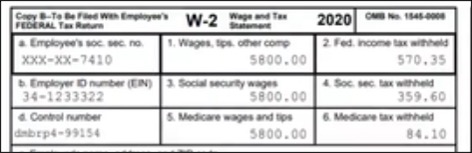
Added ability to mask SSN on employee W-2s
Prior to 2020, the IRS did not allow for social security numbers to be masked on employee W-2s. This is now allowed on the employee copy of the 2020 W-2. The social security number will be displayed with a mask except for the last 4 digits (see example). The full social security number will still display on the employer copy of the 2020 W-2 form.
If you would like this configured for your company, please reach out to your assigned payroll specialist.
1099-NEC forms are available
1099-NEC forms should be used to report nonemployee compensation. These forms are now ready for 2020 year-end in iSolved.
Time
New carryover options available for accrual plans
Two new carryover options for iSolved Time users have been added to correct issues when employees take time in a pay period that spans two calendar years. The new options ensure time off is applied in the correct plan year. When employees use PTO in the last pay period of the calendar year, the new calendar year option will deduct time used through December 31st from the employee’s balance before the carryover is calculated. Time taken after December 31st is applied to the next plan year. The new anniversary year option splits the taken time into the appropriate plan year in the same way. The Time Off Balances screen has been updated to reflect these changes as well.
To explain how this corrects time off balance calculations that have not worked as expected, let’s assume we have these plan details for a calendar year plan:
PTO plan year runs from January 1 – December 31
Balances are calculated as: current balance – taken + carryover + accrued (This scenario also corrects issues for balances that are calculated as: current balance – taken + accrued + carryover)
The last pay period of the calendar year runs from 12/28/2020 – 01/10/2021
The accrual plan does not allow unused time to be carried over into the next plan year
The example employee has a current balance of 20.00 hours going into the 12/28/2020 – 01/10/2021 pay period
The employee has taken the following PTO:
8 hours on 12/31/2020
8 hours on 01/08/2021
The example employee will accrue a new lump sum of 80.00 hours on January 1 based on their seniority tier
To calculate PTO correctly, the 8 hours taken on 12/31/2020 should be applied to the 2020 plan year and the 8 hours taken on 01/08/2021 should be applied to the 2021 plan year.
Using the existing Calendar Year carryover option, the system would use this calculation:
20.00 hours current balance – 16.00 hours taken in the pay period – 4.00 hours carryover lost + 80.00 hours accrued = 80.00 hours balance at the end of the 01/10/2021 pay period.
This is incorrect, since all the taken time is applied in the 2020 plan year.
Using the new Calendar Year carryover option, the system will use this corrected calculation:
20.00 hours current balance – 8.00 hours taken through 12/31 – 12.00 hours carryover lost + 80.00 hours accrued on 01/10/2021 – 8.00 hours taken on 01/08/2021 = 72.00 hours balance at the end of the 01/10/2021 pay period.
This is the correct balance, since time is applied in the appropriate plan year.
If you have any questions about these new options or how your existing configuration will change, please reach out to watime@insperity.com.
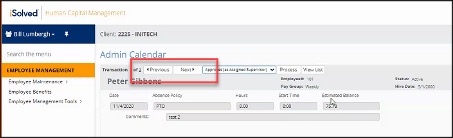
Added ‘Previous’ and ‘Next’ buttons to the Time Off Request approvals on Admin Calendar
Previously, users would be redirected back to the calendar view of the Admin Calendar each time they approved a Time Off Request. To streamline the process, iSolved has added ‘Previous’ and ‘Next’ buttons to make it easier for supervisors or managers to scroll through the time off requests and complete the approvals.
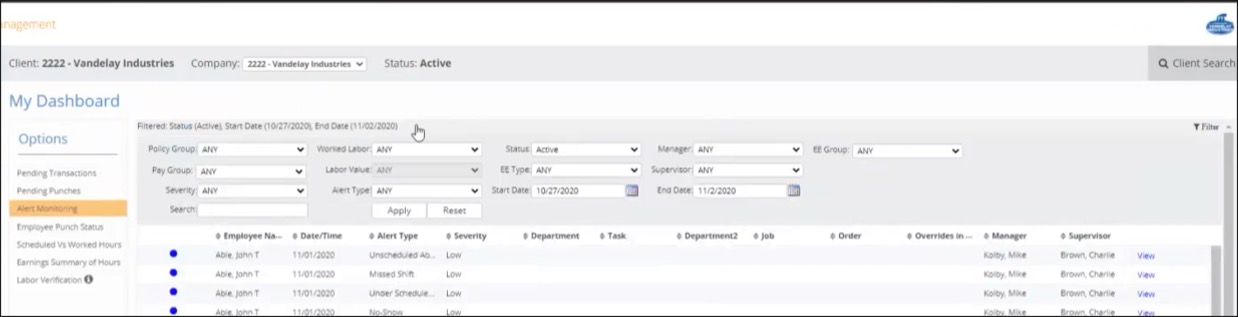
Added collapsible filters to My Dashboard
Collapsible filters were added to the My Dashboard screen to give users extra room for the results of the search. When collapsed, the filter line will display a summary of what’s being filtered. Users can click the summary in order to expand the filters again to make a new selection. Filters will automatically collapse when results are generated.
iSolved deployed product release version 6.9 on Sept. 18, 2020, which includes enhancements to iSolved HCM , iSolved Time and updated reporting for COVID-19.
HR and payroll
Requiring job and workers’ compensation employee assignments
When you hire new employees using the New Hire Wizard, Quick Hire Wizard or Rehire Wizard, you can require the employee job and workers’ compensation code. The new Require Employee Workers’ Comp Code option will make the Workers Comp field required, while the new Require Job option will make the job required.
Contact your payroll specialist if you would like to add these requirements to your hiring processes.
Generating benefit arrears for inactive employees
Employees were furloughed as COVID-19 forced business shutdowns across the country. To automate tracking of missed benefit payments while employees are not working, a new feature accumulates arrears during payroll processing for inactive employees. The new Calculate Memos, Deductions in Arrears, Schedule Earnings option allows you to define employment status for inactive employees who need to track benefit arrears. Upon return to work, accumulated arrears balances will be withheld from their pay. Depending on how your deductions are configured, arrears may be withheld automatically, or you may need to enable arrears withholding for each employee.
Contact your payroll specialist for assistance creating a new employment status to calculate arrears for inactive employees, or to review your arrears settings.
Supervisor and manager report access security updates
iSolved has reviewed all reports that contain the employee Social Security Number, salary and bank account information. Supervisors and managers will only be granted access to reports that meet their security restrictions. For example, if a supervisor can view salary information, but not SSN or bank accounts, they will be restricted from reports that contain SSN and bank account information, but will still be able to see reports that contain pay rates and salaries. You can still control which reports are available to supervisors and managers using Report Groups, but these restrictions prevent seeing reports in their Report Group if they contain restricted information.
Subtotals added to Payroll Register reports
The Payroll Register reports have been updated to allow subtotals by organization level. You can now define subtotals when you run these reports:
Periodic Payroll Register Export
MTD Register
QTD Register
YTD Register
MTD Register with Employer Taxes
QTD Register with Employer Taxes
YTD Register with Employer Taxes
Hire access for supervisors and managers
Clients have requested the ability to allow supervisors and managers to complete the hiring process for their employees who have successfully onboarded. The new functionality allows supervisors or managers to use the New Hire and Quick Hire buttons on the Pending Employee Dashboard without requiring access to the New Hire and Quick Hire menu options. This prevents supervisors and managers from hiring employees who have not completed onboarding.
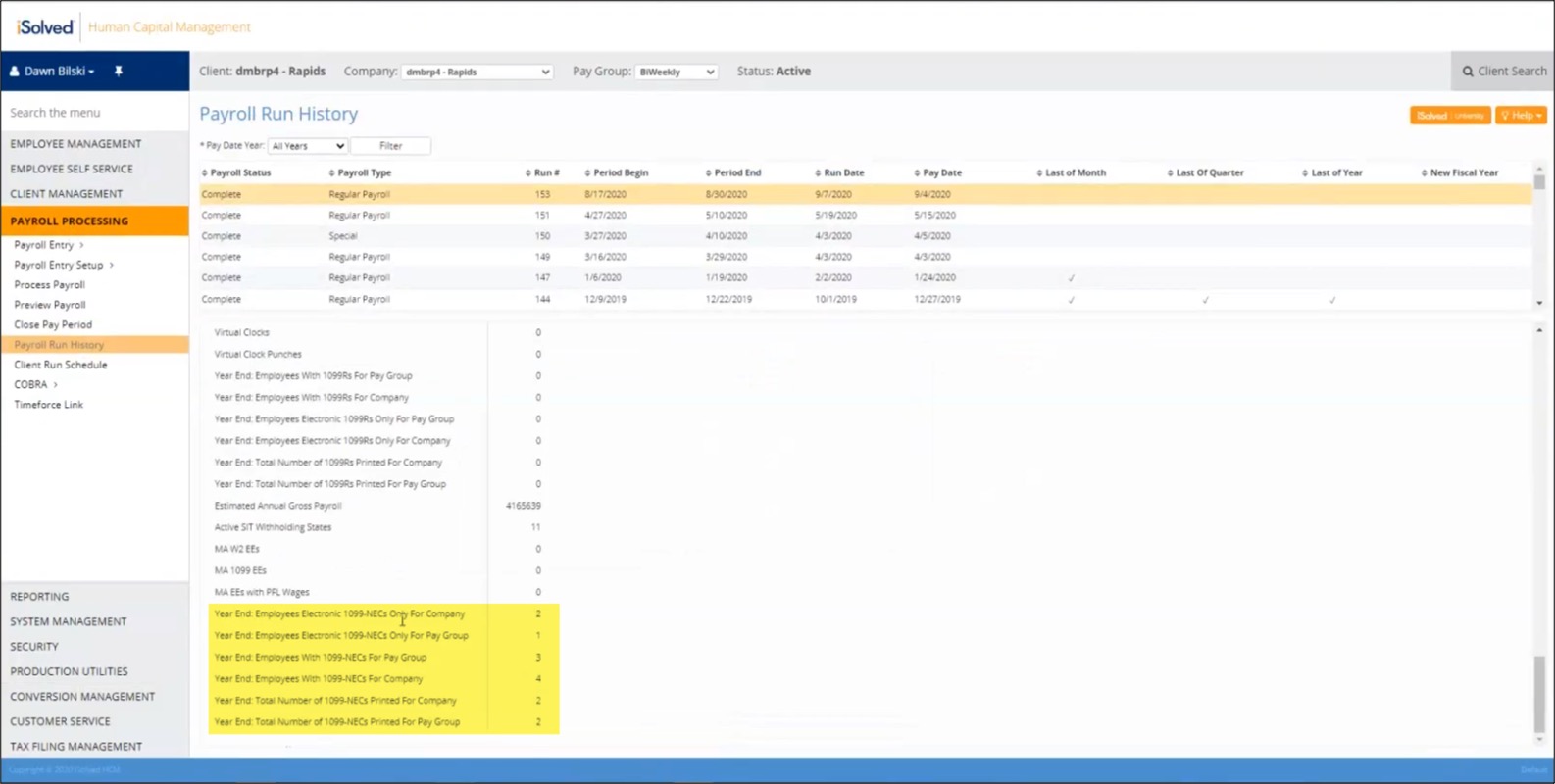
1099-NEC employee counts
The Payroll Run History screen now displays counts for 1099 employees who received non-employee compensation. This change is in preparation for the new 1099-NEC year-end form for 2020.
iSolved Time
New No-Show Alert for scheduled employees
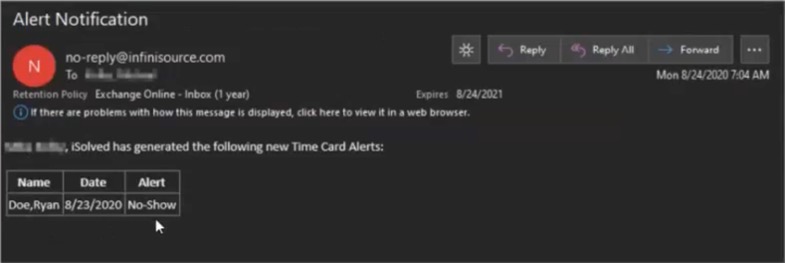
Prior to the 6.9.0 release, the Missed Shift Alert and the Unscheduled Absence Alert were available to notify administrators for unscheduled conditions. The Missed Shift Alert triggers when an employee punches in after their scheduled start time, but still within the schedule window. If the employee does not punch at all during the window they are scheduled to work, the Unscheduled Absence Alert is triggered. Neither of these alerts offered real-time updates to Supervisors or Managers when employees failed to report to work. The new No-Show Alert allows you to set a threshold from the scheduled start time, and if the employee doesn’t arrive within that grace period, the No-Show Alert will generate. You can also use this new option to trigger other custom alerts. Like the rest of the iSolved Time alerts, No-Show Alerts can trigger notification emails, notifications in the iSolved GO mobile application, and they can be displayed on the timecard to employees, supervisors, or managers.
The No-Show Alert notification email looks like this:
Please contact WATime@insperity.com to enable the No-Show Alert if you use scheduling within iSolved Time.
COVID-19
CARES PPP Loan Forgiveness Report updates
iSolved continues to update the CARES PPP Loan Forgiveness Report to correct FTE and payroll calculations.
Allow an employer to enable the employee Social Security tax deferral for eligible employees earning less than $4,000 in a biweekly period. Since the Treasury has not yet clarified whether employers who opt in must require all employees in the company to defer or allow individual employees to make the choice, iSolved will support both.
There will be an option at the Legal Company level to enable the deferral for all eligible employees in the company.
There will be an option on the Other Taxes tab of the Employee Tax screen to enable the deferral for specific employees.
Determine eligibility by annualizing the $4,000 per biweekly payroll threshold and then comparing it to the employee’s annual salary from their effective salary record.
Accumulate the deferred tax amounts for employees who have enabled the option.
Report the accumulated deferred tax amounts on the quarterly 941s and W-2s, once the IRS releases specifications for those revised forms.
In preparation for these changes, do not mark employees exempt from Social Security tax. The tax exemption will not accrue deferred taxes or report properly on quarterly or year-end forms.
Because employers may be liable for deferred taxes that cannot be collected from employees in the new year, Insperity strongly recommends discussing the employee Social Security Tax deferral with your legal and financial advisors.
To configure the CARES PPP Loan Forgiveness Report or discuss the COVID-19 tax deferrals, please contact your payroll specialist, who can put you in touch with a COVID-19 expert.
iSolved deployed product release version 6.7 on May 28, 2020. This release included enhancements to iSolved HCM and Benefits Administration.
HR & Payroll
Certification email enhancements
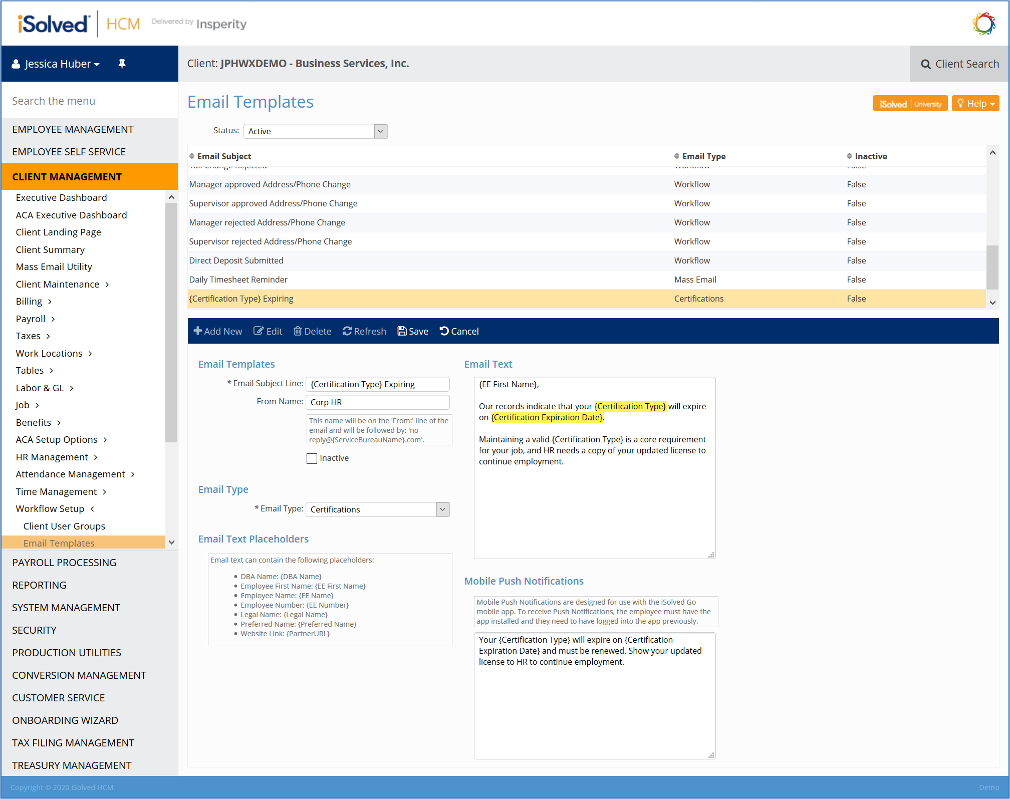
Automated certification emails notify administrators and employees when critical certifications are about to expire. You can now customize your certification email templates to include the certification type and expiration date using the new macro fields, {Certification Type} and {Certification Expiration Date}.
Onboarding check for duplicate employees
As businesses reopen, employees will need to be rehired and new ones added. The Initiate Onboarding step has been enhanced to notify HR administrators if they’re accidentally onboarding an existing employee as a new one, or if they’re trying to initiate onboarding for the same person twice. Initiate Onboarding has also been updated so you can enter birthdates and Social Security numbers during the Initiate Onboarding step if you know them. iSolved will automatically check for duplicates based on name, email address, birthdate and SSN. If a match is found with an existing employee, you should click Cancel and use the Rehire using Reboarding process instead. If a match is found with a pending employee who was already initiated for onboarding, you can cancel before a duplicate is created.
For more information on Onboarding and Rehire using Reboarding, review these topics in iSolved University:
If you do not currently use Onboarding, but would like to start, please reach out to your assigned payroll specialist.
Benefits
Monthly limits for qualified transportation benefits
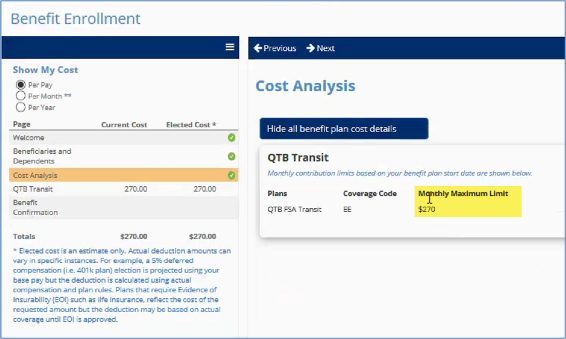
The IRS limits pretax contributions to commuter, transit and qualified parking benefit plans to $270 per month in 2020. Previously, employee contribution elections were capped at $3,240 per year, but now the limits will be applied on a monthly basis to better support IRS guidelines. Benefit enrollment has been updated, so the Cost Analysis page displays the monthly limits. When employees enter their desired payroll contribution amount, they will not be able to elect a contribution that would exceed the monthly limit, based on their pay frequency.
Managed enrollment
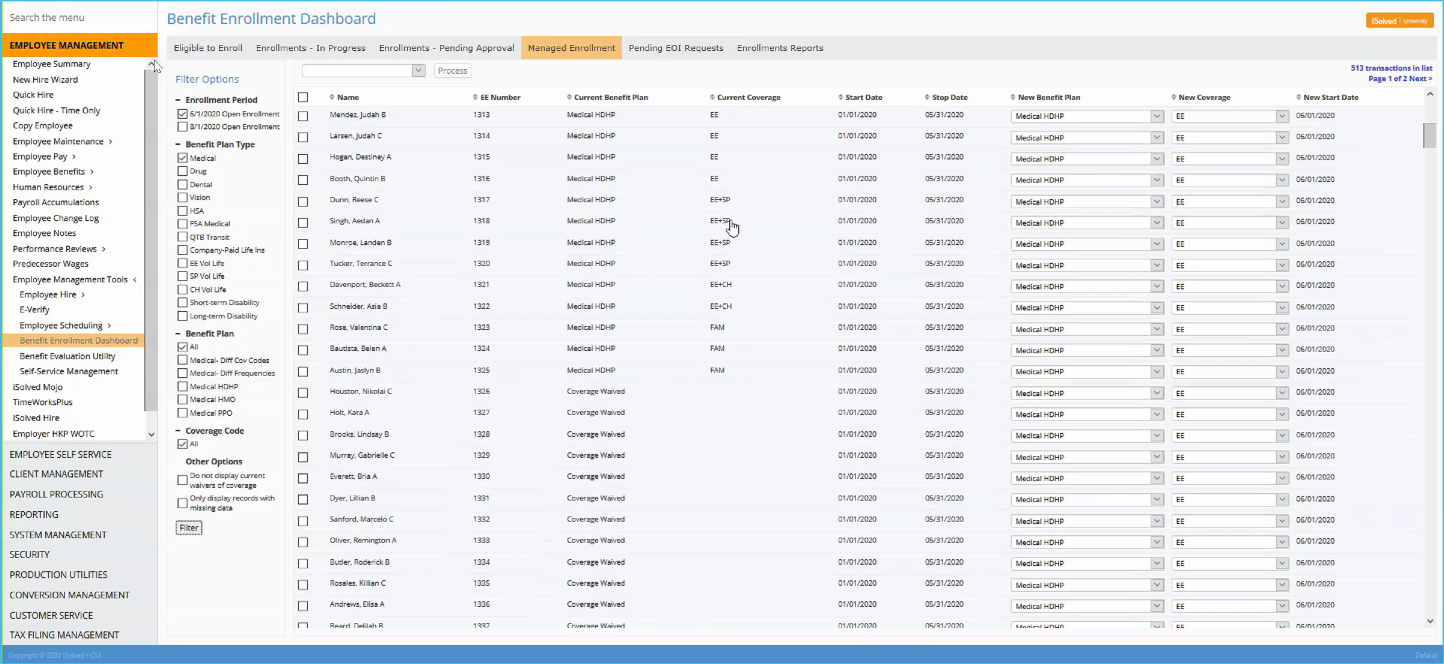
Once open enrollment is complete, benefit administrators can now automatically assign benefit plans to employees who did not make any elections. You can configure the new Managed Enrollment feature to support your benefit policies. For each benefit type, you can:
Automatically enroll employees in their existing benefit plan and coverage
Automatically waive coverage if employees do not make any elections
Automatically assign a specific benefit plan and coverage tier
Automatically move employees from one benefit plan to another within their existing coverage tier
For options that maintain existing coverage tiers, enrolled dependents and beneficiaries will also be carried forward unless they do not meet dependent age requirements. This option can also be used for all benefit types, including health, basic and voluntary life, FSA, HSA and qualified transportation benefit plans.
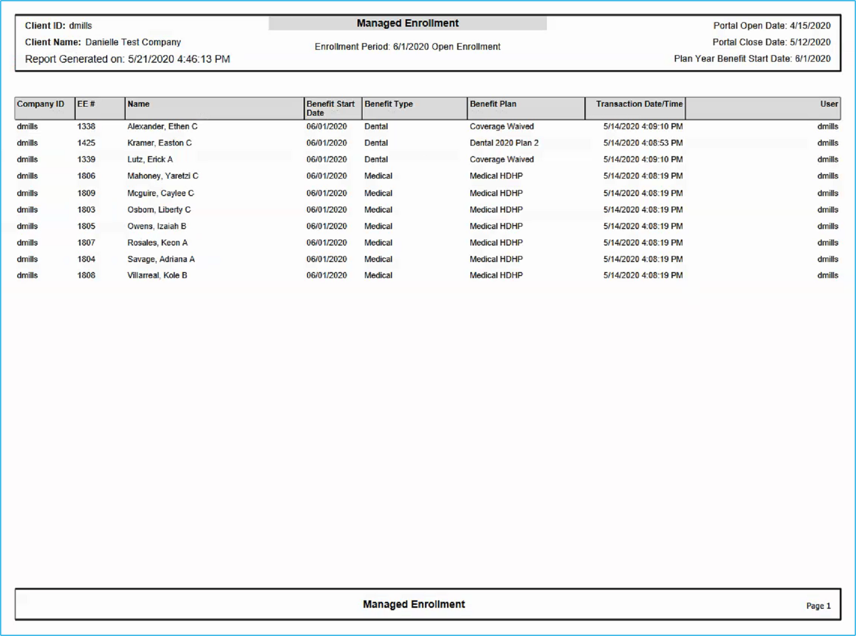
A new Managed Enrollment report has been added to capture employee benefit assignments applied using this new feature.
Instructions will be available in the iSolved University, or you can contact your benefits specialist for more information.
Time
Employee-submitted missed punch option
To save time for supervisors and managers, employees can now submit their own missed punches. This option empowers employees when more teams are working from home and tracking down missing punch information is harder than ever. When an employee realizes they forgot a punch, they can submit the missing time for approval.
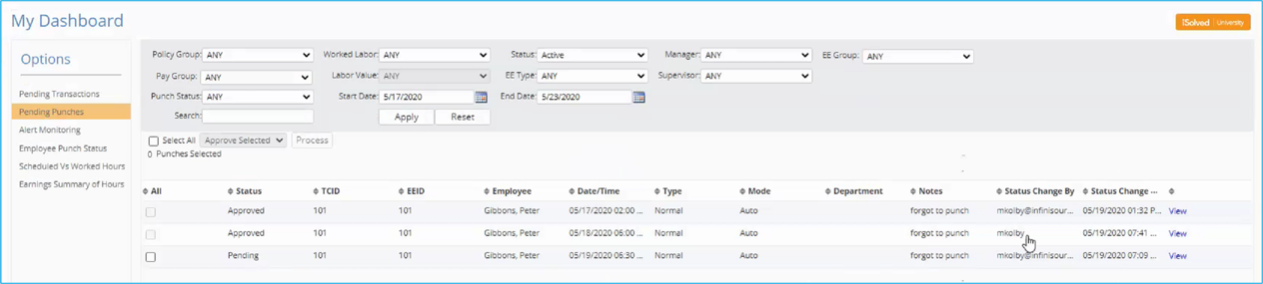
A new Pending Punches section is available from My Dashboard, so supervisors and managers can quickly approve the missed punches their employees have entered. A notification will also display on the employee’s timecard indicating there are pending punch requests. A new Missing Punch Approved alert is available to notify employees when their punches have been approved.
The Submit Missed Punch option can be enabled in Employee Self Service (ESS) and iSolved Virtual Clocks.
iSolved reports are being enhanced as the Treasury and Small Business Administration continue to offer new guidance on Paycheck Protection Program loan forgiveness and 941 reporting.
The draft CARES PPP Loan Forgiveness Report has been updated to provide details to complete your Loan Forgiveness Application. It will include tabs to assist with Table 1 and Table 2 calculations for the Schedule A for payroll costs and FTE counts. On June 5, 2020, the Paycheck Protection Program Flexibility Act of 2020 (PPPFA) was signed into law. The PPPFA extended deadlines and allowed more of the loan to be used for non-payroll expenses. For this reason, it is recommended that you wait until the updated report is released before using it to calculate payroll costs for forgiveness.
CARES Act Retention CreditReports have been updated to support revised guidelines.
The CARES Act Retention Credit Report < 100 employees has been updated to use Social Security wages by default. If you already worked with Insperity to configure the earnings to include, your configuration will still be in place.
The CARES Act Retention Credit Report > 100 employees has been updated to include the employer portion of qualified health plan expenses in qualified wages for employees who are furloughed and not being paid. Additional changes are still pending to address the incorrect 30-day lookback period for wage limits. Currently, the report calculates 30 days prior to 3/13/2020, the date when you could begin claiming the Employee Retention Credit. It should calculate 30 days from 1/1/2020 if you qualify based on a 50% or more decline in gross receipts, or 30 days from the start of the government-ordered business shutdown if you qualify for that reason.
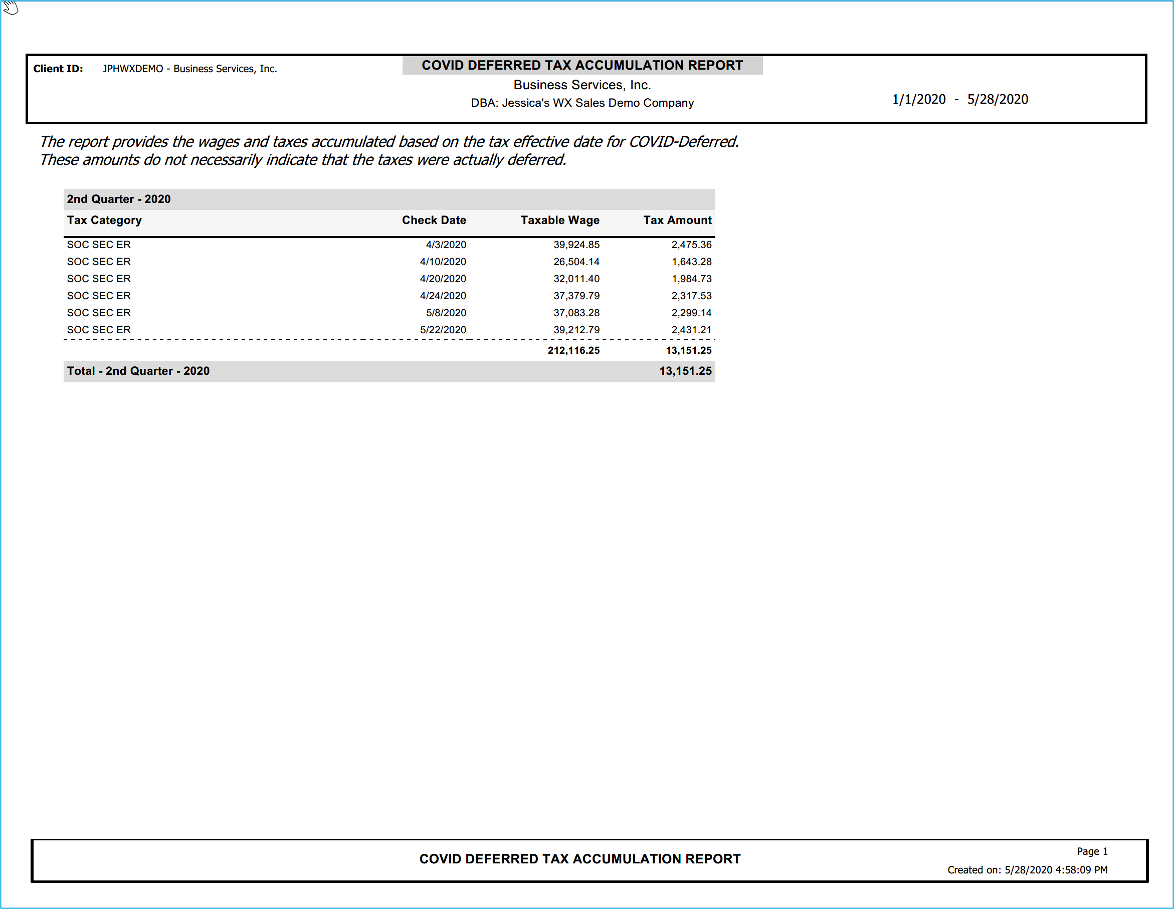
The COVID Deferred Tax Accumulation Report tracks employer Social Security taxes that have been deferred to date to assist with budgeting tax payments that will be due in 2021 and 2022.
Updated Business Tax Credit processing
For companies with multiple tax credit types, they are now being applied in the proper order based on updated IRS guidance. COVID-19 tax credits will be applied after other existing business credit types during payroll processing. They will be applied in this order:
Small Business Research Credits
Work Opportunity Tax Credits
FFCRA Leave Tax Credits
CARES Act Employee Retention Credits
This credit order will be reflected on the Payroll Summary report.
Insperity has a team of experts who can assist with questions related to the COVID-19 legislation and guide you through proper iSolved configuration and processing. Contact your payroll specialist to be connected with a COVID-19 expert.
IMPORTANT REMINDER
To generate accurate 941 tax forms at the end of the second quarter, you must tell Insperity if you qualify for Employee Retention Credit, have filed Form 7200 to claim advance tax credit payments, or need to adjust FFCRA leave tax credits to include qualified health plan expenses. Refer to the COVID-19 Tax Credits in the iSolved email sent on 4/29/2020, or contact IPS.Tax@insperity.com so iSolved can be updated to reflect your tax situation.
On April 3, 2020, iSolved deployed product release version 6.6 that includes enhancements to iSolved HCM and Benefits. More information about the updates are detailed below.
iSolved Payroll and HR
Updated login screen for users with multiple accounts
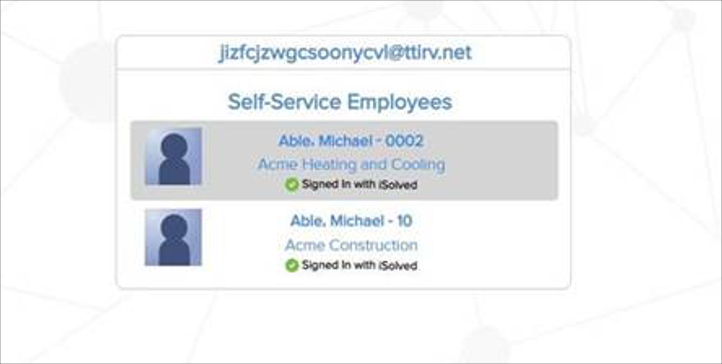
If users have multiple iSolved accounts tied to the same Self Service Email address, the latest update helps them navigate between accounts. When logging in, the employee with multiple accounts should select the account they want before completely logging in. Previously, the employee could log in, but would use the employee icon in the top-left corner to switch between accounts.
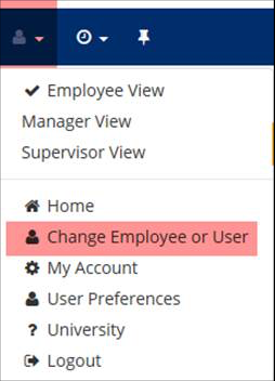
The drop-down also changed to switch accounts. An employee with multiple accounts should click “change employee or user” to get back to the login screen, where they can select another account.
Improved experience in Employee Onboarding
Several enhancements were made to the look and feel of employee onboarding to improve the employee experience. These enhancements include:
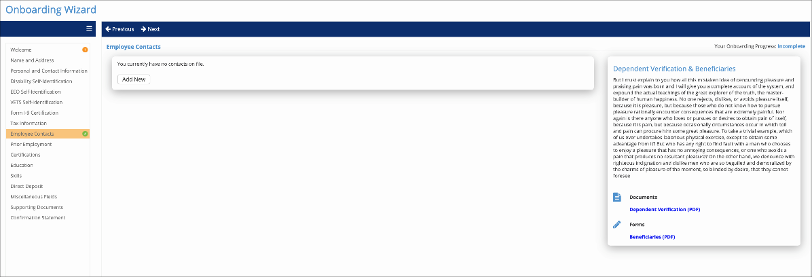
Messages are now allowed on eligible pages of the Onboarding Wizard to customize the onboarding process for new hires and provide the information they need.
Messages display in a new and improved format.
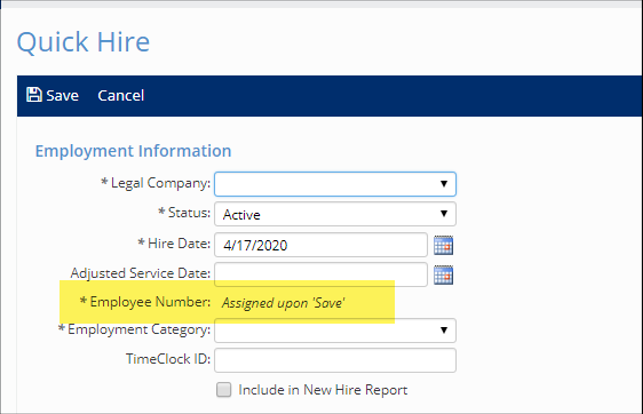
Assign employee numbers upon save
A new configuration option allows you to auto-assign employee numbers when you save. This feature is designed for multiple people hiring employees at the same time, preventing duplicate numbers from being assigned if users save new hires simultaneously.
The functionality works by locating the highest employee number used and adding one to generate the next available number.
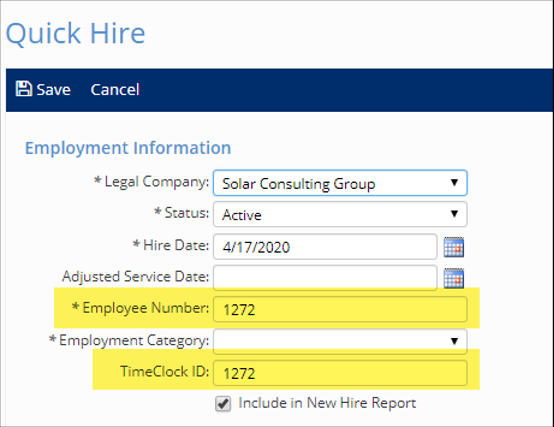
Default Timeclock ID to match employee number
A new field allows the default timeclock ID to match the employee number, which can be used with or without the auto-assignment of the employee number feature mentioned above.
Note: If the employee number is manually updated, the timeclock ID will not automatically update. This only works when you are first auto-assigning employee numbers.
Updated Form I-9
Updated to new version of I-9 Form and instructions (expiration: October 31, 2022)
Additions to the form and instructions:
‘eSwatini’ to the list of countries in the drop-down
Macedonia updated to Macedonia, North
CAN and MEX added to state drop-down lists for border commuters
Validation added for any non-required fields left blank on the form (middle initial, other last names used, email address, telephone number)
Language of the pop-up validation: You have not completed all fields. Return to the form and review missing fields. If you need help, click on the information icon next to each field. Once you have reviewed the form and are ready to sign, reselect Sign Form. Upon signing, any fields left blank at that time will be auto-completed with N/A.
Informational icons added to assist employees completing the form enhance user experience
When you select U.S. Passport or U.S. Passport Card for List A I-9 Document Title, the issuing authority now defaults to U.S. Department of State.
iSolved Payroll and HR updates to the login screen and I-9 were automatically applied. If you would like to take advantage of the available enhancements to Onboarding, assigning employee numbers upon save, or defaulting the time clock ID number to match the employee number, please reach out to your payroll specialist.
iSolved Benefits
New Benefit Groups functionality
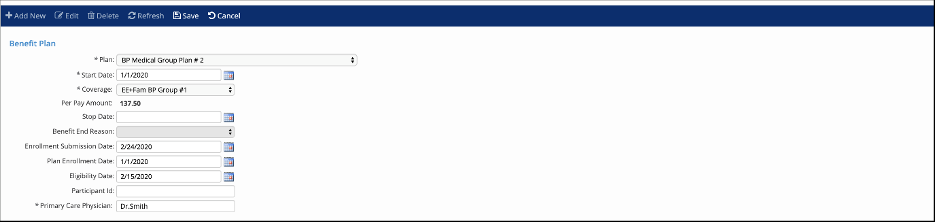
You can now bundle Benefit Plans within Benefit Enrollment, allowing your employees to elect an entire group of plans at one time. This ensures that employees choose the same coverage for all plans in the group.
Within Benefit Plans, the Enrollment Date field is now Enrollment Submission Date, and a new field called Plan Enrollment Date tracks the original date an employee enrolled in the plan.
If you would like to discuss using Benefit Groups for your company, please contact your assigned benefits specialist.
On Feb. 14, 2020, iSolved deployed a product release that included enhancements to iSolved Payroll and HR, as well as Benefits and iSolved Time.
Enhancements to iSolved Payroll and HR
Payroll run date reminders
Running your business is top priority, but make sure payroll doesn’t slip through the cracks. New email reminders can help by notifying your payroll processors when it’s time to run payroll. If you’d like to receive payroll reminders, contact your payroll specialist to get them set up.
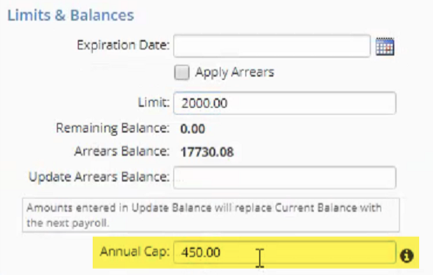
Annual caps on employee garnishments
You can now assign an annual limit for each employee garnishment, which supports garnishment wage orders from courts and federal or state agencies The limit will cap the total amount that can be deducted in a calendar year. The new Annual Cap field is available in the Limits & Balances section of the Garnishments screen, which can be found on the Employee Management > Employee Pay menu in iSolved HCM.
Time entry grid changes to active employee filter
Changes to the active filter
on the Time Entry Grid make it easier to pay only the employees who were active
during the pay period.
If employees are hired after the pay period end
date, they will no longer be included.
If employees are terminated after the pay period
end date, but were active on at least one day in the pay period, they will be
included. These terminated employees are highlighted on the grid with a red
flag.
Hide employee labor fields in Quick Hire
Labor fields in iSolved are
used to:
Capture
where an employee is working or task they are performing during time entry for
accurate labor allocation
Determine
the correct pay rate for employees
Define general ledger account numbers so they
can be associated with earnings, deductions, memos and taxes on your general
ledger reports
Capture additional details like the date when an
employee worked for certified payroll reporting
Depending on the purpose of your labor fields, you may want
to assign a home or default value to employees when you hire them. iSolved has
always included or required employee labor field assignments for the New Hire
and Quick Hire wizards. To ease confusion and streamline the process, you
can now hide labor fields from the Quick Hire screen if you don’t need to
assign a default value to employees.
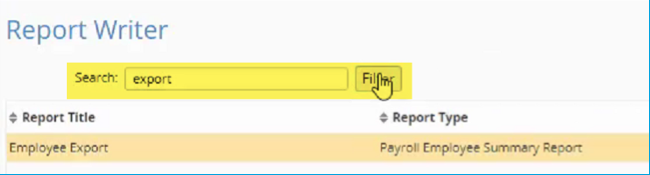
Search for reports in Report Writer
A new search option on the Report Writer screen lets you quickly find the one you need.
Garnishment, Time Entry Grid and Report Writer changes were applied automatically. To take advantage of payroll run date reminders or to hide labor fields in Quick Hire, you will need to contact your payroll specialist.
Enhancements to iSolved Benefits
Benefit enrollment enhancements
As part of the ongoing focus on usability in iSolved
Employee Self-Service (ESS), benefit enrollment has been enhanced.
At the
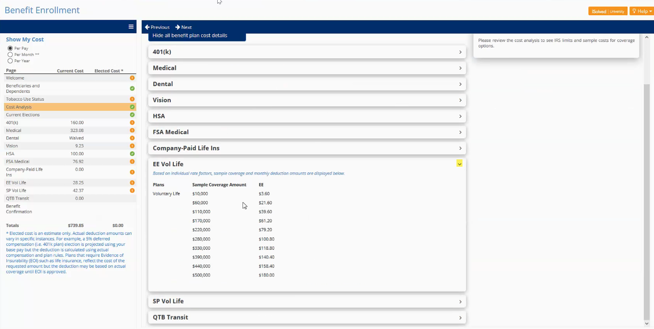
beginning of the enrollment wizard, the Cost Analysis page lets employees
expand and collapse benefit types, allowing more details to be shown for each
plan.
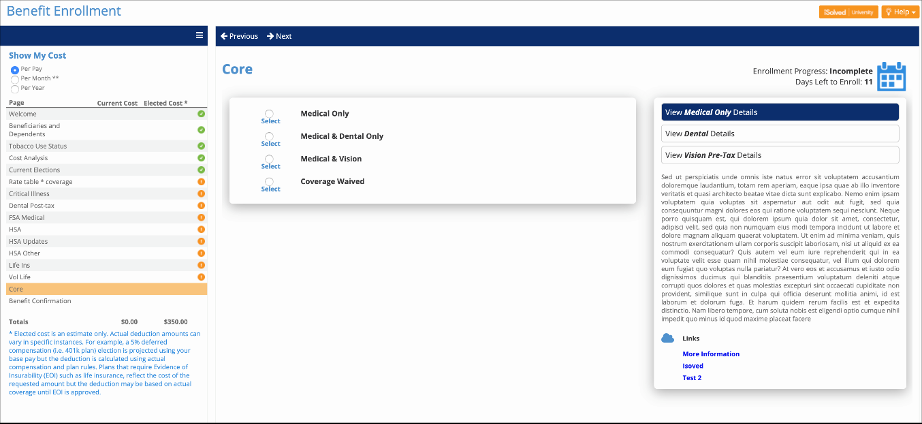
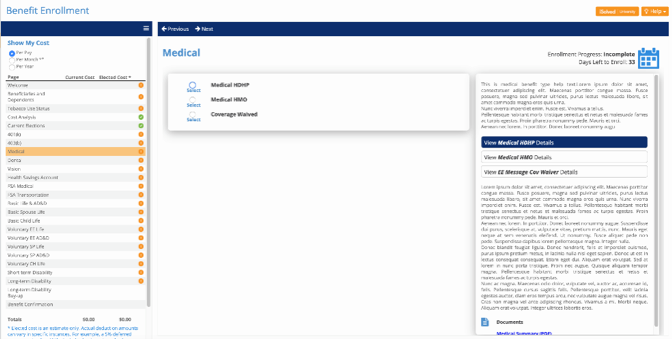
Messages can now be included on all the pages in the enrollment wizard. You can provide more details and better instructions to employees. Multiple web links and downloadable documents allow employees to collapse message boxes and focus on one section at a time. Documents that require employee review must now be opened or downloaded to sign the acknowledgment.
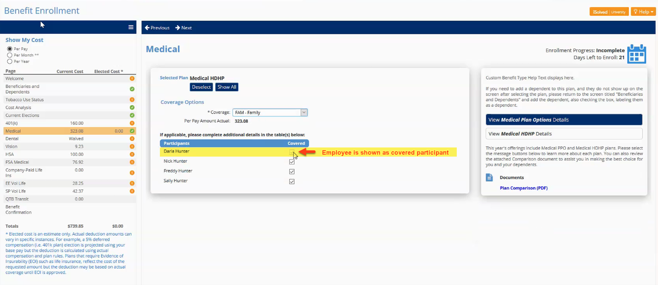
When employees are enrolled in a benefit plan, they will now be shown as participants in the coverage section.
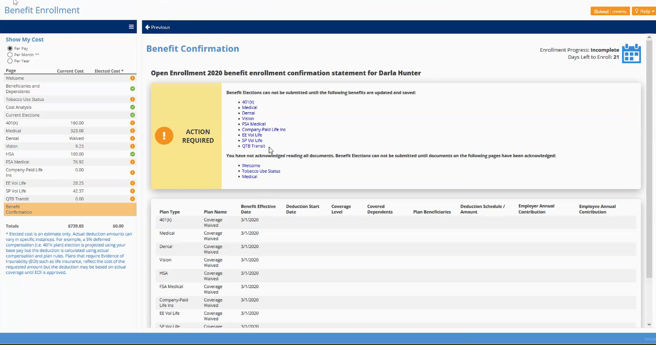
If employees have skipped sections or missed acknowledging important documents during enrollment, the improved Benefit Confirmation screen lists items they still need to review and clickable links navigate directly to that page.
The benefit navigation enhancements were applied automatically to your new hire, life event and open enrollments. To add new messages on your benefit pages, you will need to contact your benefits specialist.
Enhancements to iSolved Time
Overtime labor options
iSolved Time has always been
able to convert hours to overtime based on daily or weekly requirements. The
enhanced overtime options allow you to designate which hours become overtime
first, based on employee labor assignments. You can now assign overtime first
to:
Time when employees are working in their home
labor assignments
Time when employees are working outside their
home labor assignments
Time when employees are working in specific
labor assignments
These options help you allocate overtime for more accurate
cost reporting.
Prevent verification of locked timecards
Locking timecards is the first step to paying employees for time recorded in iSolved Time. Previously, employees, supervisors or managers could approve timecards after they had been locked. Now you can lock down any changes to the timecards, including changes to verification status.
Automating California split shift premium pay
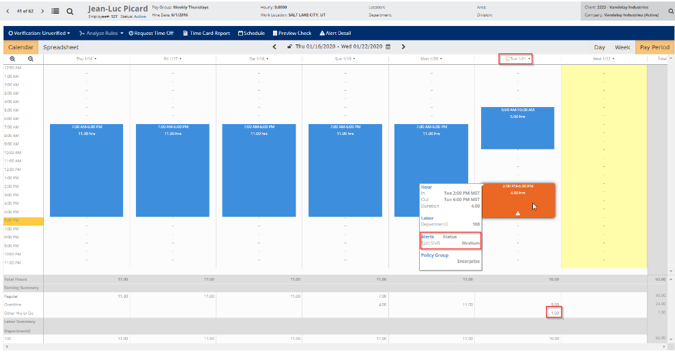
If you are subject to California labor requirements and have employees who work a split shift, you can now automate the one-hour premium pay in iSolved Time. A split shift occurs when an employee works for part of the day, leaves for longer than a meal period, then returns later to work again. For example, a restaurant server who works from 10 a.m.-1:30 p.m. and returns at 4 p.m. to work would be subject to the split shift premium if they are paid minimum wage. The shift split premium is one hour at the California state minimum wage OR the local minimum wage, whichever is greater.
With this feature, split
shifts are identified on the employee timecard as an alert. The alert color
will be defined by the alert level you choose.
If you would like to enable these new iSolved Time features, please contact WATime@insperity.com.
The latest iSolved product release was deployed on Dec. 6, 2019 and includes changes and enhancements that may impact you. Below is a summary of the major enhancements in this release.
Employee Document categories
Employee Documents can now be organized into online folders for easier management and security compliance. Your existing document security settings will still apply.
The new categories
are:
Personnel – Consent forms when employees
accept electronic signatures or electronic form delivery in onboarding and ESS,
and items manually uploaded as the Employee Document, Recruiting/New Hire, Job
Description or Employee Status Change types are included.
Payroll – W-4s and other state and local
tax forms that employees completed during onboarding or using the Tax Update
Wizard in ESS, and items manually uploaded as the Employee Payroll Document
type are included.
I-9 – I-9 documents that employees
completed during onboarding or using the Employee I-9 screen in ESS, and
finalized documents when employers complete I-9 verification or reverification. If the employer has not completed the
employer I-9 verification in iSolved, the employee portion of the form will be
available here. Once the employer has
completed verification, the employee portion will be replaced by the full
version with both the employee and employer portions completed. Documents that are manually uploaded using
the Employee I-9a, Employee I-9b, Employee I-9c and I-9 Documentation types are
also included here.
Confidential PHI – Benefit confirmation statements
generated during New Hire/Rehire Enrollment, Open Enrollment, or Life Event
Enrollments in ESS. This section also
includes supporting documentation that employees attach in the Life Events
wizard, and items manually uploaded as the Employee Confidential PHI document
type.
Confidential – Other – Onboarding Confirmation
Statements and Supporting Documents that employees uploaded during onboarding,
along with WOTC documentation and forms.
Performance-related documents that are manually uploaded are also
included.
Signed Acknowledgements – When employee messages or
benefit enrollments include documents that require acknowledgement, this
section contains the signed acknowledgements.
Documents that are manually uploaded using the Signed Company Policies
document type are also included.
EE Uploads – Completed custom fillable PDF
forms and documents that employees upload on the Documents tab in ESS are
included.
Self-Service Management
Self-Service Management allows you to quickly send registration emails to all employees in each status category, and now you can send emails to individuals or groups from the enhanced dashboard.
The
Account Status tab provides an
overview of the self-service access status for each employee, similar to the
Self-Service Management view in version 6.3 and earlier.
The
Enable Access tab allows you to
quickly send emails to employees who need to complete their registration.
Inactive Accounts shows you employees who have not
completed timely registration , or who have not accessed their self-service
account within the last 90 days and need to register again.
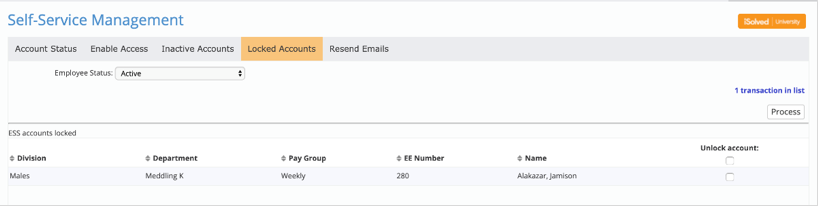
Locked Accounts lists all employees who are
temporarily locked out of the system after entering an incorrect username or
password five times. These accounts will
still automatically unlock after 10 minutes for the employee to try logging in
again.
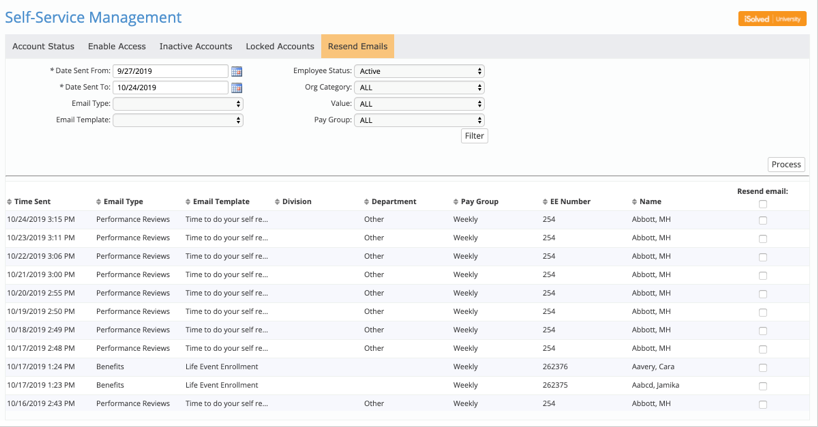
The Resend Emails tab provides access to all emails that have been sent to your employees in the last 30 days. Use this dashboard to confirm an email was sent o to resend if the email was not received.
Benefit Evaluation Utility
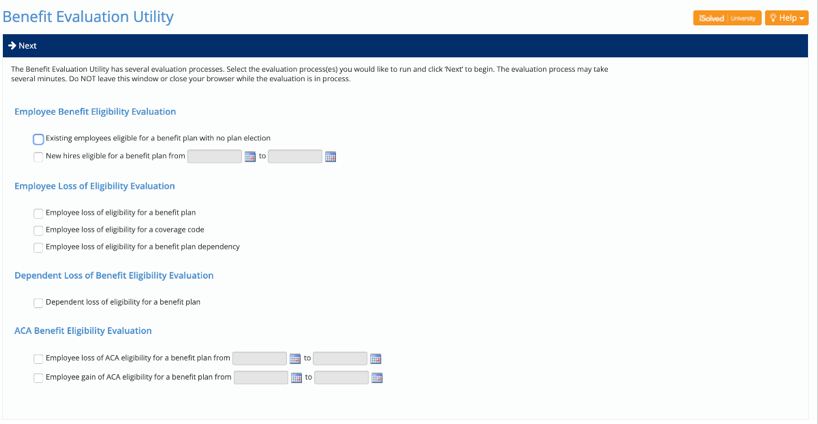
The Benefit Evaluation Utility improves the
way you manage benefit eligibility if you use iSolved for Benefits
Administration. New features include:
If you use Infinisource for COBRA administration:
The Existing employees eligible for a benefit plan with no plan election {option / evaluation} finds employees who are eligible for benefits but have not selected or waived coverage yet. If they are COBRA-eligible plans, they will be sent to Infinisource so they can receive the COBRA General Notice.
The New hires eligible for a benefit plan from {date} to {date} option allows you to evaluate new hire eligibility across a date range. New hires who meet the plan entry criteria for COBRA-eligible benefits will be sent to Infinisource so they can receive the COBRA General Notice.
Find employees who are terminating coverage using the Employee loss of eligibility for a benefit plan evaluation. If they are terminating coverage in a COBRA-eligible plan, their information will be sent to Infinisource so they can receive the COBRA Election Notice outlining their benefit continuation options.
By completing the evaluation for those status types, Infinisource will be updated to send the required COBRA notices.
The
New hires eligible for a benefit plan
from {date} to {date} option enhances the existing Loss of Benefits Eligibility Evaluation option by giving you
flexibility to choose the date range when your probation periods are longer
than 30 days. The existing option only
runs for 30 days.
The
Employee loss of eligibility for a
coverage code supports benefit plans with multiple employee coverage groups
whose rates vary based on company, location or similar criteria. Completing that evaluation will identify
employees who qualify for different rates because they changed companies,
locations or other coverage group factors.
The
Employee loss of eligibility for a
benefit plan dependency analyzes current employee elections to locate
employees who are enrolled in coverage without meeting current dependency
requirements. For example, it will
identify employees who elected a Health Savings Account (HSA) without also
being enrolled in a High Deductible Health Plan (HDHP).
Dependent coverage loss has been moved into a separate evaluation option that identifies dependents who have “aged out” of the plan or no longer qualify as full-time students. It will also identify dependent benefits that have been terminated, but are missing a termination reason.
The
ACA Benefit Eligibility Evaluations use the
initial and ongoing measurement cycles you defined in iSolved to identify when
an employee has gained or lost coverage at the end of each cycle. Now you can analyze all eligibility changes
from the Benefit Evaluation Utility.
Form I-9 Completion Enhancements
Changes have been
made to I-9 data collection and reporting to better support U.S. Customs and
Immigration Services guidelines, including:
Receipt
selections are now included on List A, B and C documents.
If
the employee does not fully complete their portion of the I-9 form, it will
reflect the Information Only status
for enhanced compliance.
To
reduce clutter on the Employee Documents
screen, the system will display the full version when the employer has
completed their portion.
FLSA Exemption Threshold Report
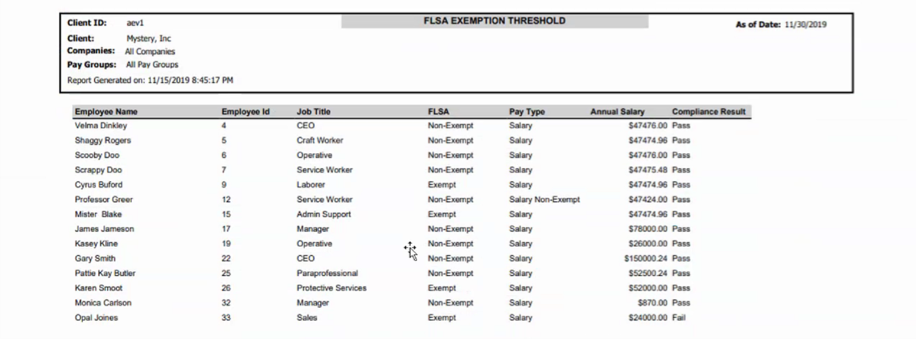
The FLSA Exemption Threshold Report is available to help employers identify exempt employees that are paid at or below the FLSA salary threshold, which will increase to $35,568 annually on Jan. 1, 2020.
Time Updates
If you use iSolved
Time for time & attendance functionality, these enhancements were made in
this product release:
New Notifications
To help reduce
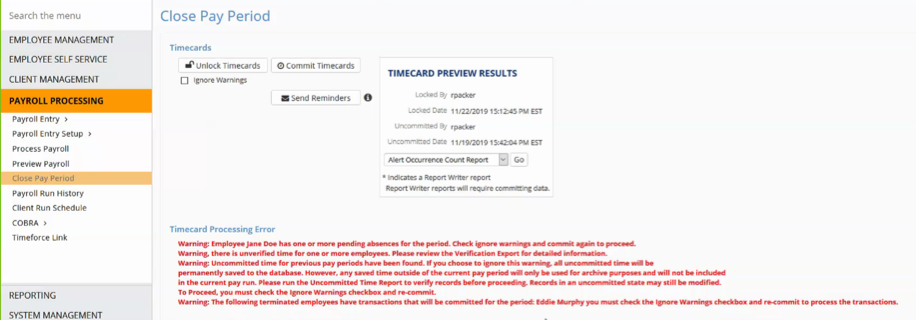
payroll issues, new notifications have been added to the Commit Timecards process on the Close Pay Period screen. The first
new notification identifies terminated employees with time in the pay period,
so the payroll administrator can verify if they were already paid on-demand
following state termination requirements.
A second notification identifies pending absences in the pay period,
since unapproved absences will not generate earnings. This allows the payroll administrator to
contact the approver to determine whether the absence should be paid or
rejected.
The updated messaging
looks like this:
The new notifications can be bypassed using the Ignore Warnings checkbox.
New Threshold Setting for Meal & Break Rules
A new setting for
Meal & Break rules is available to provide enhanced functionality for
California employers. Meal rules can now
be configured to support employees who have waived their first required meal
when they are working less than six hours.
Normally, their first meal would be required once they’ve worked five
hours, but the new Work Threshold
definition adds the flexibility to skip missed meal alerts and auto-generated
meals until the employee has worked six hours.
Contact WATime@insperity.com to configure this feature.
On Oct. 11, 2019, iSolved deployed a product release that includes menu changes and new benefit tools.
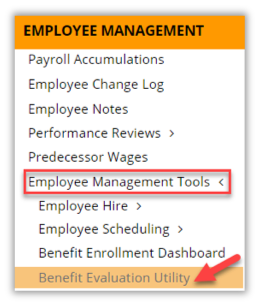
Menu changes
Benefit Evaluation Utility
The Benefit Evaluation Utility option has moved to the new Employee Management Tools menu in the Employee Management section. Now client users can easily manage COBRA benefit eligibility.
Time menu links renamed
The Time Off Requests menu links have been renamed Employee Calendar and Admin Calendar to better reflect the current function. In addition to showing time off requests, the calendars display schedules, team absences, holidays and blackout dates.
New benefit tools
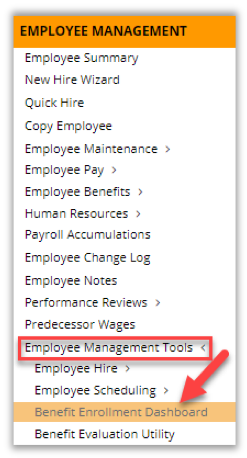
Benefit Enrollment Dashboard
iSolved has enhanced benefit enrollment administration by creating a Benefit Enrollment Dashboard. Easy-to-use tabs identify employees in each stage of the enrollment process and provide online details, along with reports and exports.
New Benefit Reconciliation report
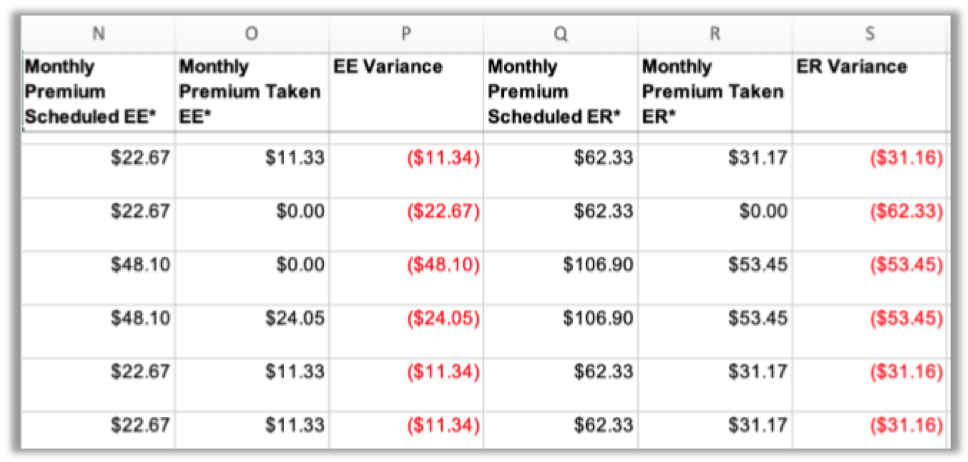
The new Benefit Reconciliation Export report allows client benefit administrators to reconcile scheduled and taken benefit deductions to easily locate missed premium payments.
Insperity is here to help. If you have any questions, please contact your payroll specialist.



















 Benefit Evaluation Utility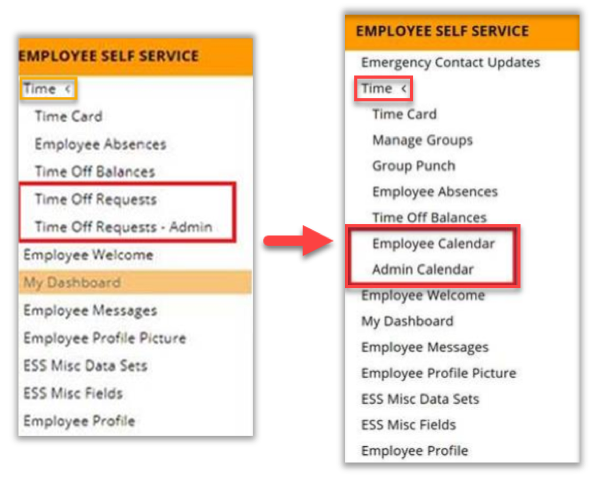
 Benefit Enrollment Dashboard